Blog
How to Add Fast AJAX Product Search to WooCommerce
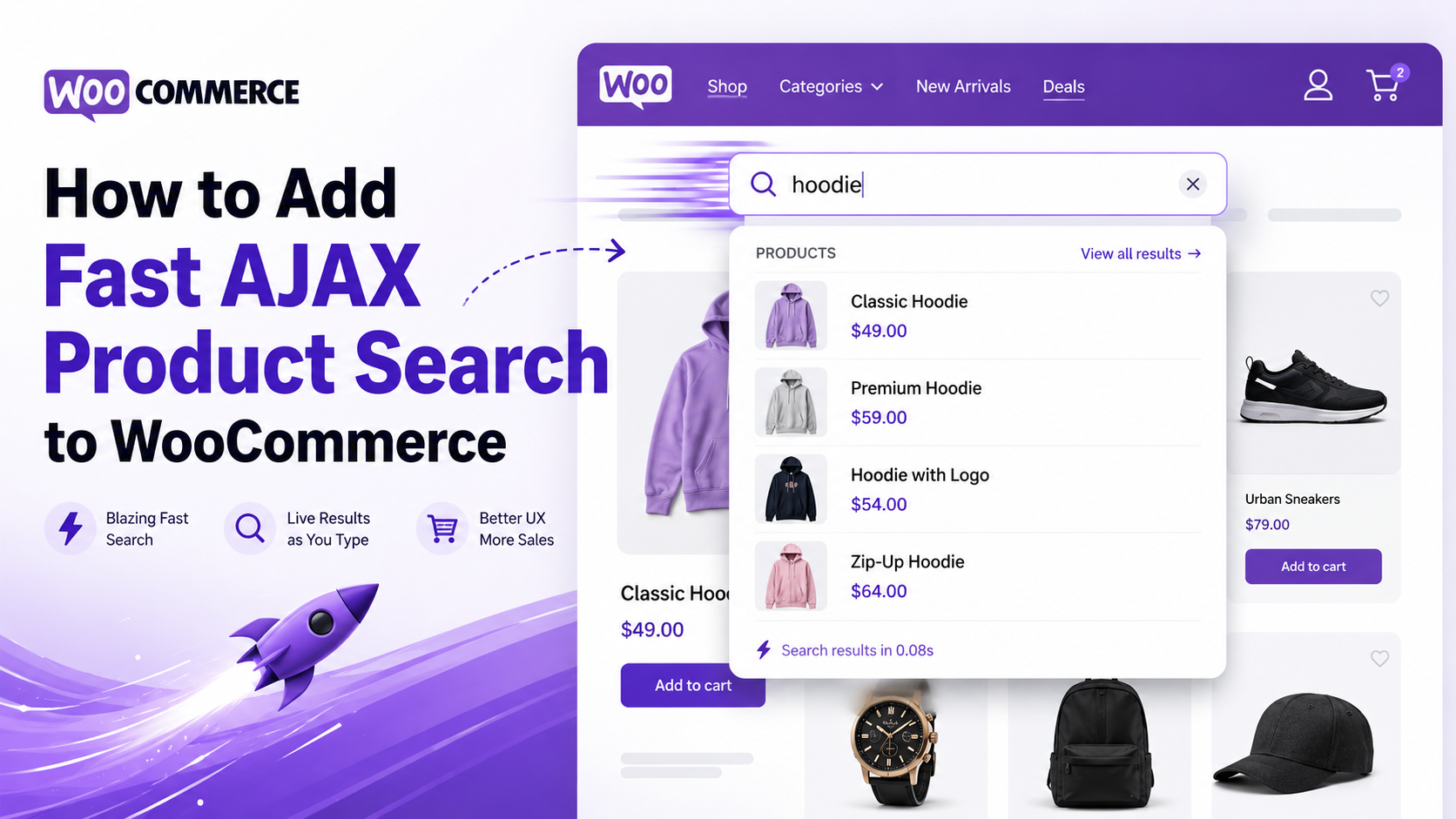
A customer lands on your WooCommerce store and starts typing into the search bar.
They are ready to buy. They know roughly what they want. But instead of seeing instant product suggestions, they have to type a full query, press Enter, wait for a results page to load, and then hope the results are relevant.
That is not how modern ecommerce search is expected to work.
Fast AJAX product search lets shoppers see matching products as they type, usually in a dropdown below the search bar. Done well, it can show product names, images, prices, SKUs, categories, and “view all results” links without forcing the customer to reload the page.
In this guide, we’ll explain what AJAX product search is, why default WooCommerce search can feel limited, and how to add a faster live search experience to your store.
Quick answer: how do you add AJAX product search to WooCommerce?
The easiest way to add AJAX product search to WooCommerce is to use a dedicated WooCommerce search plugin that replaces the default product search field with a live search bar.
A good AJAX product search setup should:
Show results while the customer types. Search only products, not blog posts and pages. Return results quickly. Support product titles, SKUs, categories, tags, and attributes. Handle typos and synonyms. Work on mobile. Show useful product information in the dropdown. Keep the full search results page available for broader queries. Track what customers search for.
Search Sight is built to replace default WooCommerce search with sub-50ms typo-tolerant results, analytics, synonyms, and featured products, making it a strong option if you want a fast, product-led search experience rather than a basic keyword box.
What is AJAX product search?
AJAX product search is a live search experience that updates search suggestions without reloading the entire page.
In WordPress terms, AJAX allows the browser to request information from the server and display that information on the current page instead of forcing a full page refresh. The WordPress Plugin Handbook describes AJAX as a technique that lets a browser request information from the server and display it on the same page without reloading the whole page.
For WooCommerce, this usually means:
The shopper starts typing into the search box. JavaScript sends the query to your store or search service. Matching products are returned. A dropdown appears under the search bar. The shopper clicks a product, category, or “view all results”.
For example, a customer types:
leath
Instead of waiting for them to press Enter, your store might instantly show:
Leather Wallet Leather Belt Leather Crossbody Bag Leather Care Kit
That small improvement can make product discovery feel much faster.
Why add AJAX search to WooCommerce?
Search is one of the highest-intent actions on an ecommerce site.
Someone using your search bar is not casually browsing. They are telling you what they want. The problem is that many ecommerce search experiences still make users work too hard.
Baymard’s 2026 ecommerce Search UX benchmark found that 56% of ecommerce sites fail to adequately support users’ search needs, and its research notes that roughly half of participants turn to search as their preferred product-finding strategy.
For WooCommerce stores, AJAX product search can help by making search:
Faster — shoppers see suggestions before loading a results page. More visual — product images and prices help customers choose. More forgiving — typo tolerance and synonyms can reduce “no results”. More commercial — featured products can guide shoppers to bestsellers or campaigns. More measurable — search analytics reveal what customers actually want.
The goal is not just to make the search box look nicer. The goal is to shorten the path between “I want this” and “I found it”.
Default WooCommerce search vs AJAX product search
Default WooCommerce product search can work for small stores, but it is usually basic compared with a dedicated AJAX search experience.
Feature Basic WooCommerce search Fast AJAX product search Results while typing Usually no Yes Full page reload required Usually yes No, not for suggestions Product images in dropdown No by default Yes, depending on setup Prices in dropdown No by default Yes, depending on setup SKU search Limited or requires configuration/plugin support Usually supported by advanced tools Typo tolerance Limited Often supported Synonyms Limited Often supported Search analytics Limited Often supported Product merchandising Limited Often supported
A basic search results page still matters. Customers should always be able to press Enter and see a full list of results. But AJAX search improves the first interaction by helping customers find likely matches faster.
How to add fast AJAX product search to WooCommerce
There are two main ways to do it:
Use a WooCommerce AJAX search plugin. Build a custom AJAX or REST API search feature.
For most store owners, the plugin route is the better choice. Custom search sounds simple at first, but fast ecommerce search quickly becomes complex once you need speed, relevance, SKUs, attributes, variations, typo tolerance, mobile UX, and analytics.
Method 1: Add AJAX product search with a plugin
This is the recommended route for most WooCommerce stores.
A dedicated WooCommerce search plugin handles the search logic, product indexing, live dropdown, and front-end behaviour for you. Instead of trying to make the default WordPress search query faster, the plugin can focus specifically on ecommerce product discovery.
Step 1: Choose a WooCommerce search plugin
Look for a plugin that supports:
Live AJAX results. Product-only search. Product images. Prices. SKU search. Categories and tags. Attributes. Variations, if relevant. Typo tolerance. Synonyms. Search analytics. Mobile-friendly dropdowns. Fast indexing. Simple theme integration.
This matters because “AJAX” only describes the way results are loaded. It does not automatically mean the search is good.
A slow or irrelevant live search dropdown is still a bad search experience.
Step 2: Install the plugin
In WordPress, go to:
Plugins → Add New
Then either:
Search for your chosen plugin in the WordPress plugin directory, or Upload the plugin ZIP file, if you are using a premium plugin.
Activate the plugin after installation.
For Search Sight, the basic goal is to replace your default WooCommerce search with a faster, typo-tolerant product search experience that includes analytics, synonyms, and featured products.
Step 3: Sync or index your products
Fast WooCommerce search usually depends on an index.
An index is a search-ready version of your product catalogue. Instead of asking WordPress to search through every product field from scratch each time a customer types, the search tool can use the index to return better results faster.
After activating your search plugin, look for an option such as:
Sync products Build index Rebuild index Import catalogue Reindex products Connect store Update search data
Let the index finish before judging the results.
This is especially important if your store has:
Hundreds or thousands of products. Product variations. SKUs. Attributes. Custom product fields. Imported catalogue data. Frequent stock or price updates. Step 4: Replace the default WooCommerce search form
Next, make sure your live search field appears where customers actually search.
Common locations include:
Header Mobile header Shop page Product category pages Sidebar No-results page 404 page Homepage hero section
A common WooCommerce issue is that the theme’s header uses a normal WordPress search form instead of a product search form. WooCommerce’s product search form template includes a hidden post_type field with the value product, which tells WordPress to search products.
A product search URL often looks like this:
?s=hoodie&post_type=product
A general WordPress search URL may look like this:
?s=hoodie
If your header search is not product-specific, your AJAX search may not behave as expected.
Step 5: Configure what fields are searchable
Customers do not always search using your product titles.
They may search for:
SKU Brand Category Colour Size Material Model number Compatibility Product type Variation name Attribute Use case Symptom or problem Common synonym
For example:
Customer searches Product data might say trainers sneakers navy blue tee t-shirt replacement blade cutting insert iPhone cable USB-C charging cable moisturiser hydrating face cream
WooCommerce’s own Product Search Field block documentation describes options to search across product titles, excerpts, content, categories, tags, attributes, and SKU, which shows how many different product fields can matter for search relevance.
In your search plugin, enable the fields that matter most for your catalogue.
For most stores, start with:
Product title SKU Categories Tags Attributes Short description Variations, where supported
Then test real customer queries.
Step 6: Configure the live search dropdown
The dropdown should help customers make a decision quickly.
For most WooCommerce stores, a good live search dropdown includes:
Product name Product image Price Sale price, if relevant SKU, if customers search by SKU Stock status, if important Category suggestions A “view all results” link
Avoid showing too much information. The dropdown is not a product page. It should help the shopper choose a next step.
A simple structure often works best:
[Image] Product title Price SKU or category
[Image] Product title Price SKU or category
View all results for “query” Step 7: Set a sensible result limit
Do not show 30 products in the AJAX dropdown.
A live search dropdown should be fast and easy to scan. In most cases, show around 5–10 product suggestions and then add a clear “view all results” link.
This keeps the dropdown usable on mobile and avoids overwhelming shoppers.
For example:
Show 6 products Show 3 category suggestions Show “View all 42 results” Step 8: Add typo tolerance and synonyms
This is where AJAX search becomes much more useful.
Customers make mistakes. They use regional terms. They abbreviate. They search with different words than your product titles use.
Examples:
Search issue Example Typo snikers instead of sneakers Synonym sofa instead of couch Abbreviation tee instead of t-shirt Regional term trainers instead of sneakers Use case rain jacket instead of waterproof shell
A fast dropdown is not enough if the search logic is too literal.
This is where Search Sight’s typo tolerance and synonym features fit naturally. Instead of forcing customers to use your exact product wording, you can help them find products using the words they actually type.
Step 9: Test on desktop and mobile
Do not only test your new AJAX search on a laptop while logged in as an admin.
Test it like a customer.
Use:
Desktop browser Mobile browser Incognito/private window Logged-out session Slow connection simulation, if possible Real product names Partial product names SKUs Misspellings Category terms Attribute terms Synonyms
Check that the dropdown:
Opens quickly. Does not cover important navigation. Is easy to tap on mobile. Supports keyboard navigation. Shows useful product information. Has a clear “view all results” option. Does not return irrelevant products. Does not show hidden or unavailable products unintentionally. Step 10: Monitor search analytics
The best AJAX product search setups do not stop at installation.
Once live search is running, review your search analytics regularly.
Look for:
Popular searches Searches with no results Searches with low click-through Searches with high click-through Searches that should trigger featured products Product terms customers use that are missing from your catalogue Common misspellings Common synonyms
Search analytics can show you where customer language differs from your product data.
For example, if customers search for “wedding guest dress” but your categories only use “occasionwear”, you can add synonyms, tags, landing pages, or featured products.
Method 2: Build custom AJAX product search
A custom AJAX search can work for a small or highly bespoke WooCommerce store, but it requires more care.
At a minimum, a custom implementation needs:
A front-end search input. JavaScript to listen for typing. A debounce delay so you do not request results on every keystroke. A WordPress AJAX handler or REST API endpoint. A product query. Sanitisation and permissions handling. A JSON response. Dropdown rendering. Loading and empty states. Keyboard and mobile accessibility. Performance testing.
WordPress documentation notes that AJAX requests in WordPress are commonly sent through wp-admin/admin-ajax.php, and scripts should be properly enqueued rather than hardcoded into templates.
You can also build a custom REST API endpoint. The WordPress REST API documentation explains that routes are the URIs endpoints live at, and endpoints include callbacks, HTTP methods, permissions callbacks, and arguments.
Basic custom AJAX search flow
A simplified custom flow looks like this:
Customer types query ↓ JavaScript waits briefly ↓ JavaScript sends query to WordPress ↓ WordPress searches products ↓ Server returns JSON ↓ Dropdown displays products Custom search performance tips
If you build it yourself, make sure you do not accidentally create a slow search feature.
Use these rules:
Do not search until the customer has typed at least 2–3 characters. Debounce requests by around 200–300ms. Limit dropdown results to 5–10 products. Return only the data needed for the dropdown. Use small product thumbnails. Avoid loading full product descriptions. Avoid expensive meta queries on every keystroke. Cache safe repeated queries where appropriate. Do not search posts, pages, and products together unless you really need to. Make sure hidden, draft, private, or restricted products do not leak into results. Keep a full product search results page for broader queries.
The biggest mistake is treating AJAX search as a small front-end enhancement. The front-end dropdown is only the visible part. The hard part is returning relevant product results quickly and safely.
What makes WooCommerce AJAX search fast?
Fast AJAX search depends on more than the fact that it uses AJAX.
A good search experience needs the right combination of front-end speed, back-end performance, and search relevance.
- A product-focused index
Searching a dedicated product index is usually faster and more relevant than repeatedly querying raw WordPress posts and postmeta.
This matters more as your catalogue grows.
A store with 25 products can get away with a basic setup. A store with 5,000 products, thousands of variations, and lots of attributes needs a more intentional search system.
- Lightweight responses
Your search dropdown does not need every product detail.
It usually needs:
Product title URL Image Price SKU or category Availability, if relevant
Returning large HTML blocks or full product content can slow down the response.
- Debounced typing
Without debouncing, a search request may fire on every keystroke.
For example, typing “leather wallet” could trigger requests for:
l le lea leat leath leathe leather leather w leather wa leather wal leather wall leather walle leather wallet
That is wasteful.
A debounce waits until the customer pauses briefly before sending the request.
- A minimum character threshold
Do not search for one-letter queries unless there is a very specific reason.
One-letter queries are usually too broad and expensive. A minimum of 2 or 3 characters is more practical for most stores.
- Relevant searchable fields
Speed is not useful if the right products do not appear.
For WooCommerce, relevance often depends on searching:
Title SKU Category Tags Attributes Brand Variation data Synonyms 6. A fast visible interface
Customers judge search speed visually.
Even when the server is fast, the search can feel slow if the interface has no loading state, jumps around, or is hard to use on mobile.
Use:
A small loading indicator. Stable dropdown positioning. Clear hover and focus states. Tap-friendly mobile spacing. Keyboard support. A fallback full results page. Where should you place AJAX product search?
The most important location is the site header.
That is where shoppers expect search to be.
But WooCommerce stores can also benefit from placing search in:
The shop page header. Category pages. Mobile navigation. The no-results page. The 404 page. Landing pages for large catalogues. B2B quick-order pages. Documentation or spare-parts pages.
WooCommerce’s Product Search extension documentation includes live search blocks and fields that can be added across pages, widgets, and templates, which reflects a broader point: search should be available where customers need to make product-finding decisions.
For most stores, start with the header and mobile header. Then add search to high-friction pages such as no-results pages and large category pages.
What should your AJAX product search show?
The best dropdown content depends on your store type.
Fashion store
Show:
Product image Product name Price Colour or size hints Sale badge
Useful searchable fields:
Product title Brand Colour Size Material Category Tags Electronics store
Show:
Product image Product name Price SKU or model number Category
Useful searchable fields:
SKU Model number Brand Compatibility Product attributes Technical specifications Auto parts or replacement parts store
Show:
Product image Product name SKU Part number Compatibility note Price
Useful searchable fields:
SKU Manufacturer part number Vehicle compatibility Product attributes Cross-reference numbers Beauty store
Show:
Product image Product name Price Brand Skin concern or shade
Useful searchable fields:
Brand Ingredients Shade Skin type Product type Concern, such as “dry skin” or “acne” B2B or wholesale store
Show:
Product name SKU Pack size Price or login-gated price message Stock status
Useful searchable fields:
SKU Product title Bulk unit Brand Category Attributes Common AJAX product search mistakes Mistake 1: Searching the whole WordPress site
A WooCommerce product search bar should usually search products.
If your header search returns blog posts, pages, and products mixed together, customers may get confused. Make sure the search form and live search endpoint are product-focused.
Mistake 2: Ignoring mobile
A dropdown that looks good on desktop can be unusable on mobile.
Check:
Does it fit the screen? Can customers tap products easily? Does it overlap the keyboard awkwardly? Is the close button obvious? Is the “view all results” link visible? Mistake 3: Showing too many results
A live dropdown should guide the customer, not become a second shop page.
Show a small set of relevant results and let the customer click through for more.
Mistake 4: Not supporting SKUs
Many WooCommerce stores need SKU search.
This is especially true for:
B2B stores Wholesale stores Parts stores Electronics stores Repeat-purchase stores Stores with printed catalogues
If customers know the exact SKU, search should reward that intent.
Mistake 5: Not handling synonyms
Your product data might say “sofa”, but your customer might type “couch”.
Your product data might say “trainers”, but your customer might type “sneakers”.
Without synonym support, your search can return no results even when the right product exists.
Mistake 6: Making the dropdown too heavy
Avoid huge images, long descriptions, complex HTML, and unnecessary scripts.
The dropdown should be light, quick, and scannable.
Mistake 7: Forgetting the full results page
AJAX suggestions are not a replacement for a proper search results page.
Some shoppers will want to compare many products. Others will press Enter automatically. Your full search results page should still work well.
AJAX search troubleshooting checklist
If your WooCommerce AJAX search is not working properly, check these areas.
Problem Likely cause Fix No dropdown appears JavaScript error or plugin conflict Check browser console and disable conflicting optimisation plugins Dropdown works on desktop but not mobile Theme or responsive styling issue Test mobile header separately Blog posts appear in results General WordPress search is being used Use product-only search Products are missing Search index incomplete or product visibility issue Rebuild index and check product settings Search is slow Heavy queries or too many results Limit results, use indexing, reduce returned data SKU searches fail SKU field not indexed Enable SKU search Typos return no results No typo tolerance Use fuzzy matching or typo-tolerant search Synonyms return no results Synonyms not configured Add synonym rules Dropdown is covered by header CSS stacking issue Adjust dropdown positioning and z-index Live search breaks after optimisation JS defer/delay/minification conflict Exclude search scripts from aggressive optimisation Works when logged in but not logged out Cache or permissions issue Clear cache and test public product visibility How to test your new AJAX product search
After adding AJAX search, test it with real search behaviour.
Use this checklist:
Exact product searches
Search for full product names:
Classic Leather Wallet
The product should appear near the top.
Partial product searches
Search for fragments:
leath wal
Relevant products should appear before the customer finishes typing.
SKU searches
Search for SKUs:
LW-102-BLK
The exact product should appear quickly.
Category searches
Search product types:
wallet belt jacket charger
The results should be commercially useful.
Attribute searches
Search for product details:
blue large waterproof organic stainless steel
Useful products should appear if those attributes matter to your catalogue.
Typo searches
Search common misspellings:
snikers walet chargre
If your search tool supports typo tolerance, the right products should still appear.
Synonym searches
Search words your customers use:
sofa couch tee t-shirt raincoat waterproof jacket
Add synonyms where needed.
No-results searches
Search for products you do not sell.
Your store should show a helpful empty state, not a dead end.
Good no-results behaviour includes:
“No products found for…” Suggested alternative searches Popular categories Featured products Contact or support link A visible search box to try again Should you build or buy WooCommerce AJAX search?
For most stores, buy.
A custom build can make sense if:
You have a developer. Your catalogue is small. Your search requirements are simple. You only need basic title matching. You are comfortable maintaining the code.
A plugin or hosted search tool is usually better if:
You need fast results. You have a large catalogue. You need SKU search. You need variation search. You need typo tolerance. You need synonyms. You need analytics. You want setup without custom development. You want a search experience that can improve over time.
The main question is not “Can we build a dropdown?”
The real question is:
Can we return the right products quickly for the way our customers actually search?
That is a harder problem — and it is where a dedicated WooCommerce search tool is usually worth it.
How Search Sight helps
Search Sight is designed for WooCommerce stores that want a faster, more useful product search experience without building a custom search system from scratch.
It replaces default WooCommerce search with fast, typo-tolerant results and includes features such as analytics, synonyms, and featured products.
That means you can improve more than just the search bar.
You can:
Help customers find products faster. Reduce no-results searches. Promote specific products inside search. Learn what customers are searching for. Add synonyms based on real customer language. Improve product discovery without rebuilding your store.
For stores with growing catalogues, that matters. Search is not just a utility. It is a product discovery channel.
FAQs Does WooCommerce have AJAX product search by default?
WooCommerce includes product search functionality, but a fast live AJAX search experience usually requires a theme feature, extension, plugin, or custom implementation. WooCommerce’s own Product Search extension, for example, provides live product search fields, blocks, filters, automated indexing, and search reports.
Is AJAX search the same as autocomplete?
They are related, but not exactly the same.
AJAX describes how results are fetched without reloading the page. Autocomplete describes the user experience of showing suggestions while someone types. A WooCommerce live search bar often uses AJAX to power autocomplete-style product suggestions.
Will AJAX product search speed up my whole store?
Not necessarily.
AJAX search can make product discovery feel faster because customers see results without loading a full page. But it will not automatically fix slow hosting, heavy themes, unoptimised images, or general WooCommerce performance issues.
Why is my WooCommerce AJAX search slow?
Common causes include:
Too many products searched directly from the database. No search index. Heavy product meta queries. Too many results returned. Large images in the dropdown. JavaScript optimisation conflicts. Slow hosting. Search requests not being debounced. Searching posts, pages, and products together. Should AJAX search use admin-ajax.php or the REST API?
Both approaches can work. WordPress has long supported AJAX through admin-ajax.php, while custom REST API routes are another option for structured endpoints. The right choice depends on the plugin or developer implementation. What matters most is that the endpoint is secure, fast, product-focused, and returns only the data needed for the live search dropdown.
How many products should appear in live search?
For most stores, 5–10 product suggestions is enough. Add a “view all results” link for customers who want to see more.
Should I show prices in AJAX search results?
Usually, yes. Price helps customers decide whether a result is worth clicking. For B2B or wholesale stores with login-gated pricing, you may show a login prompt or omit prices depending on your pricing rules.
Should I show out-of-stock products in AJAX search?
It depends on your store. If customers regularly search for specific products, showing out-of-stock products with a clear label and alternative recommendations can be better than hiding them completely. If out-of-stock products create frustration, hide them or push them lower in results.
Final thoughts
Adding fast AJAX product search to WooCommerce is one of the most practical ways to improve product discovery.
A good live search experience helps customers:
Search faster. See relevant products sooner. Recover from typos. Use their own language. Find SKUs and product details. Avoid dead-end no-results pages.
The easiest way to get there is with a dedicated WooCommerce search plugin that handles indexing, relevance, dropdown design, and analytics.
Once your AJAX search is live, keep improving it. Review your search analytics, add synonyms, fix no-results queries, and promote the products customers are most likely to want.
The search bar is not just a box in your header. It is one of the clearest signals of customer intent on your store.