Blog
How to Add Fast Search to Any WooCommerce Theme
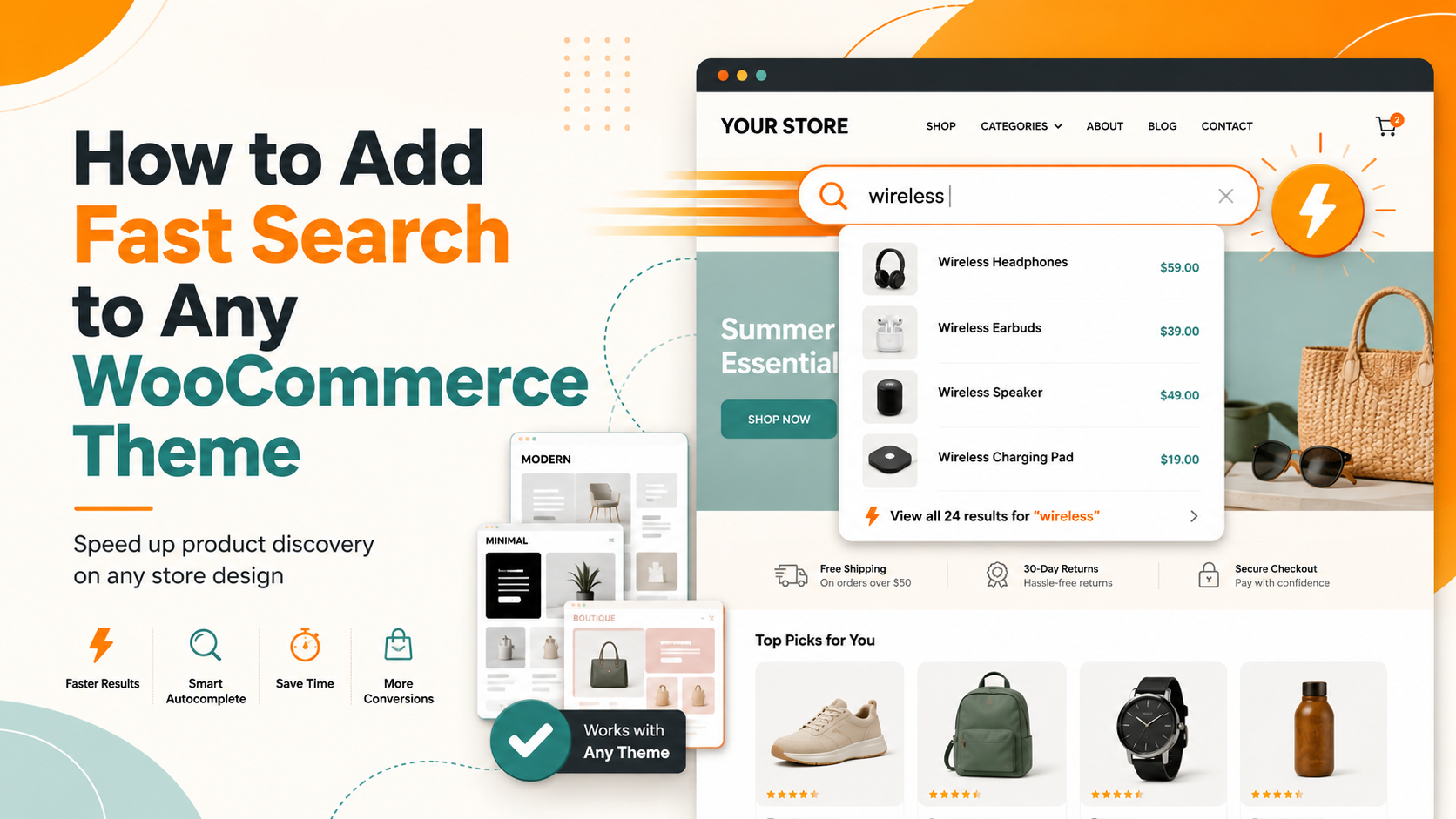
Your theme's search bar is only half the story
Every WooCommerce theme — Astra, GeneratePress, Flatsome, OceanWP, Kadence, Divi, Storefront — ships with a search bar you can drop into the header. What they all share is what sits behind that search bar: WordPress's default search engine. The box looks different from theme to theme, but the results come from the same basic SQL query that ignores SKUs, attributes, and typos.
This guide covers how to add a search bar in the most popular WooCommerce themes, and — more importantly — how to make the search behind it genuinely good, whichever theme you use.
Adding a search bar in popular WooCommerce themes
Most modern themes expose search in one of three places: the header builder, a widget area, or a block in the site editor.
- Astra: Appearance > Customize > Header Builder has a dedicated Search component — drag it into a header row and choose the box or expandable-icon style.
- GeneratePress: enable the navigation search icon under Customize > Layout > Primary Navigation, or add a Search element via GP Premium's Elements.
- Flatsome: the UX Builder header includes a Search element with live-search styling options (Flatsome > Header).
- OceanWP: Customize > Header has a built-in search dropdown/overlay you can switch on.
- Kadence: the Header Builder has a Search element with a modal or dropdown display.
- Block themes (Storefront, Twenty Twenty-Four): add the core Search block to your header template part in the Site Editor.
- Divi & Elementor: covered step-by-step in Adding Search to WooCommerce in Elementor and Divi.
For a fuller walkthrough of every method, see How to Add a Search Bar to WooCommerce.
The part your theme can't fix
None of these theme search bars change how search works. They're presentation. Behind every one of them is WooCommerce's default search, which only matches words in product titles and short descriptions, ignores SKUs, attributes, categories, and variations, has no typo tolerance, reloads the whole page instead of suggesting as you type, and ranks by date rather than relevance.
So you can spend an afternoon perfecting the look of your Astra or Flatsome search box and still lose the sale because a shopper typed "runing shoes" and got nothing. The theme controls the box; it doesn't control the engine. (For how to tell whether this is costing you, see How to Speed Up WooCommerce Search.)
Upgrading the engine — while keeping your theme's design
This is where a hosted search layer comes in. Search Sight is a fully hosted WooCommerce search service that works with any theme, because it upgrades the engine, not the search bar.
Here is how it works with whatever theme you run:
- Sign up for Search Sight and start your 14-day free trial.
- Download the WooCommerce connector at sign-up and upload it in WordPress (Plugins > Add New > Upload Plugin).
- The connector attaches an AJAX autocomplete dropdown to your theme's existing search bar — the one you built in Astra, Flatsome, OceanWP, Kadence, or any block theme. You don't rebuild your header.
- As shoppers type, instant product suggestions appear beneath the search box — images, names, prices, and SKUs — returned from Search Sight's hosted index in under 50ms.
- Pressing Enter or clicking a suggestion opens a fast, faceted results page.
Your theme keeps its exact look — colours, fonts, border radius, placement. Because the connector targets your theme's search input rather than one theme's specific markup, it's theme-agnostic: the same setup works whether you're on Astra today and Kadence next year.
What if a template has no search bar?
If a specific template — a landing page or a category hero — has no search box, the connector also ships a standalone Search Sight search widget/block you can place anywhere, pre-wired to the hosted engine with no extra configuration.
The takeaway
Choosing a fast WooCommerce theme matters for page speed and design, but no theme improves the quality of your search results — that's the job of the engine behind the box. Add your search bar with your theme's header builder, then point it at an engine that can actually find products.
Start your free 14-day trial and give any WooCommerce theme sub-50ms, typo-tolerant search in about five minutes.