Blog
Using Search Sight with FacetWP: Search and Filtering Together
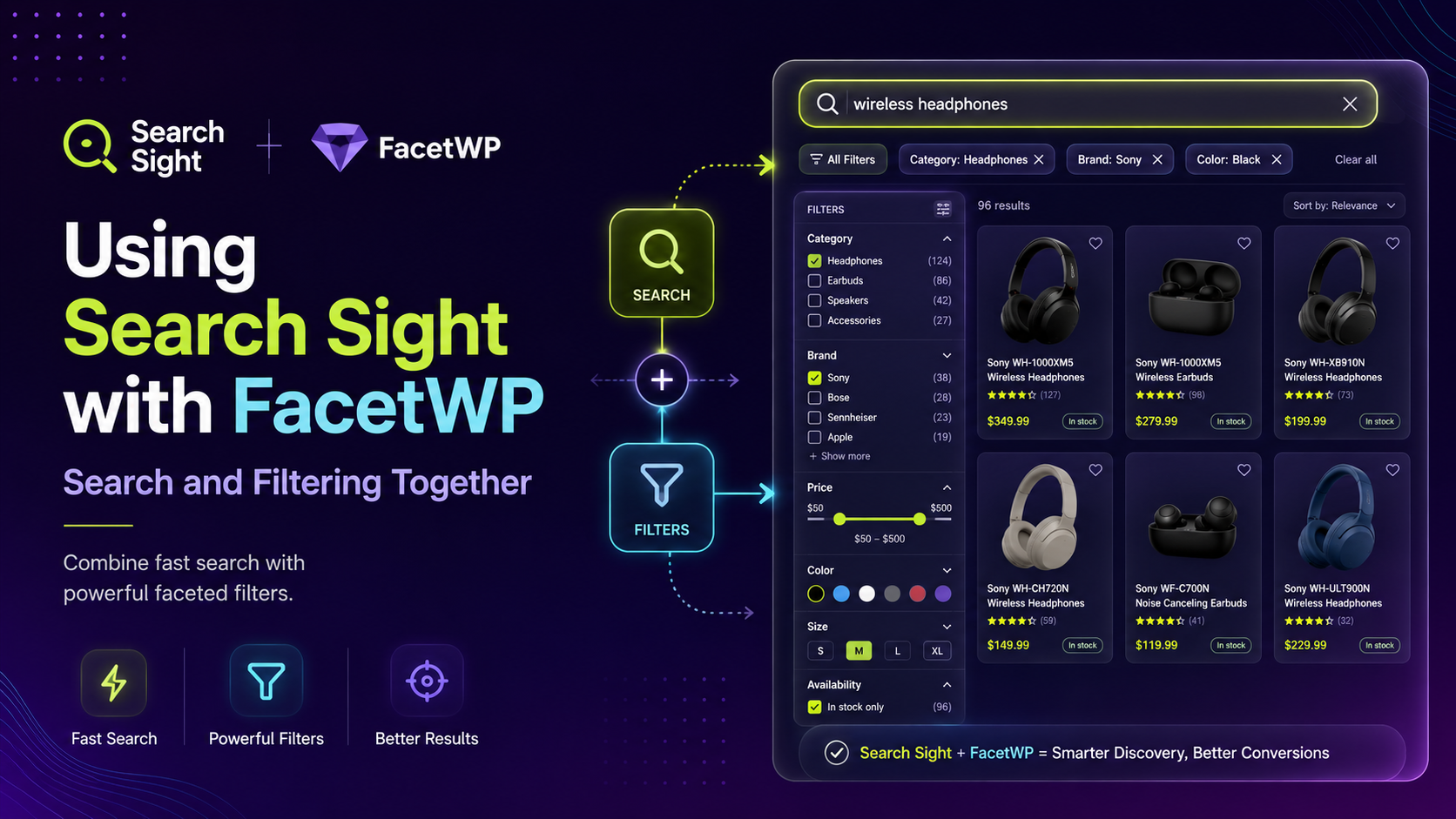
FacetWP and search solve two different problems
FacetWP is one of the most popular filtering plugins for WooCommerce, and store owners often ask whether it replaces — or conflicts with — a dedicated search tool. The short answer: they do different jobs, and they work well together.
- FacetWP adds faceted filtering to your archive and shop pages — the checkboxes, sliders, and dropdowns that let a shopper narrow a category by price, colour, brand, or attribute.
- A search tool handles the search box — what happens when a shopper types a query and expects instant, relevant product suggestions.
Filtering is for browsing. Search is for finding. Most stores need both.
Where FacetWP is strong (and where it stops)
FacetWP excels at building filterable listing pages: point it at your product archive, define your facets, and shoppers can refine large categories quickly. It's a browsing tool, and a very good one.
What FacetWP doesn't do is act as a search engine. Its own search facet still leans on WooCommerce's underlying query, so free-text search inherits the same limitations: no typo tolerance, limited matching on SKUs and attributes, and no as-you-type autocomplete. (For background on the difference, see What Is Faceted Search?.)
Where Search Sight fits
Search Sight is a hosted search service that powers the search box itself. Installed alongside FacetWP, it takes over the moment a shopper starts typing:
- An AJAX autocomplete dropdown shows instant product matches — images, names, prices, SKUs — in under 50ms.
- Typo tolerance catches "labtop" and returns laptops, so those searches don't dead-end.
- Pressing Enter opens Search Sight's own fast, faceted results page for the query.
A typical store ends up with a clean division of labour: FacetWP filters the category and shop pages a shopper browses to, and Search Sight powers the search box and the search results page. The two don't compete for the same surface. For the browsing side of the story, see WooCommerce Faceted Search and Product Filters Explained.
How to run them together
- Keep FacetWP configured as you have it for category and archive filtering.
- Install the Search Sight connector (download it at sign-up, upload in Plugins > Add New).
- The connector attaches autocomplete to your existing search bar and routes search queries to Search Sight's results page.
- Shoppers who browse categories use your FacetWP filters; shoppers who search use Search Sight. Both experiences stay fast.
One thing to know: Search Sight renders its own faceted results page for searches, with its own filters and sorting — it doesn't reuse FacetWP's facets on that page. In practice this is what you want, because the search results page is tuned for query relevance while FacetWP stays focused on the category browsing it's built for.
Do you still need FacetWP?
If your main goal is faster, smarter search and your category filtering needs are modest, Search Sight's built-in faceted results page may be enough on its own — you can see how it stacks up against other tools on the comparison page. If you have complex, highly-customised category filtering that FacetWP already handles well, keep it and let Search Sight own the search box. Both setups are common.
Start your free 14-day trial and add fast, typo-tolerant search to your FacetWP-powered store in about five minutes.