Blog
WooCommerce Search Not Showing Products? 12 Common Causes and Fixes
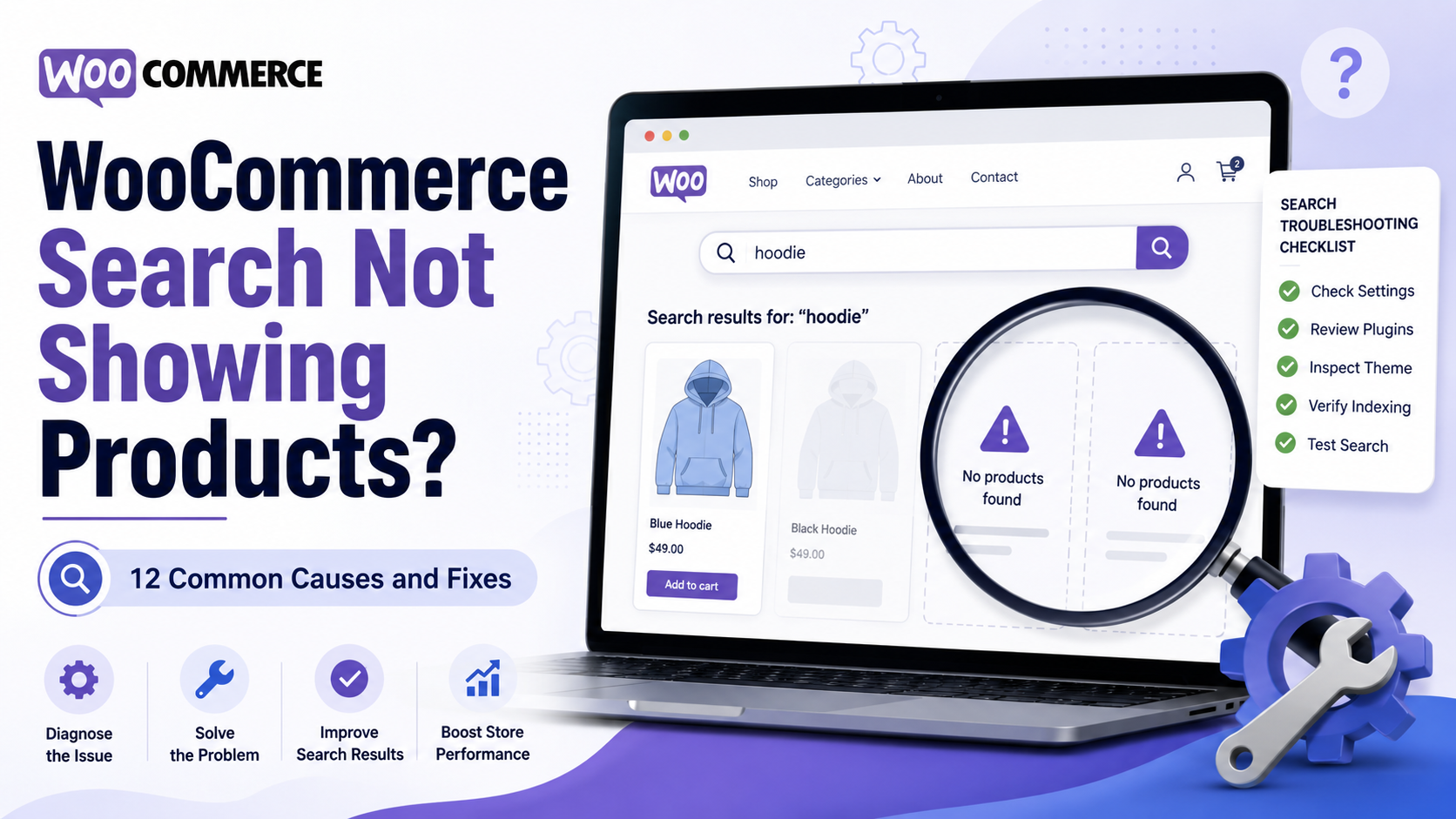
You know the product exists. You can see it in the WordPress dashboard. Maybe it even appears on the shop page. But when you search for it on the front end of your WooCommerce store, nothing shows up.
This is one of the most frustrating WooCommerce search issues because the cause is not always obvious. Sometimes the product is hidden from search. Sometimes it is out of stock. Sometimes the wrong search form is being used. And sometimes WooCommerce is working exactly as configured, but the customer is searching for information your store search does not actually index.
In this guide, we’ll walk through the most common reasons WooCommerce search is not showing products and how to fix each one.
Quick answer: why WooCommerce search is not showing products
WooCommerce products usually fail to appear in search because of one of these issues:
The product is not published. The product’s catalogue visibility excludes search results. The product is out of stock, and out-of-stock items are hidden. Your theme is using a general WordPress search form instead of a WooCommerce product search form. The customer is searching by SKU, attribute, variation, or custom field that your search setup does not cover. A search plugin index is incomplete or stale. A cache, optimisation plugin, theme override, or JavaScript error is interfering with live search.
Start by checking the product’s status, catalogue visibility, and stock status. These three settings fix a large percentage of WooCommerce search problems.
- The product is not published
The simplest cause is also one of the most common: the product is not publicly published.
In WooCommerce, product visibility depends partly on the product’s publish status. WooCommerce’s product editor documentation explains that Published products are accessible to customers, while Pending review and Draft products are not yet visible to customers. Private products are only visible to users with the right permissions.
How to fix it
Go to Products → All Products in WordPress and find the missing product.
Open the product and check the Publish panel. Make sure:
The product status is Published. The product is not Draft. The product is not Pending review. The product is not Private. The product is not scheduled for a future publish date. The product has not been moved to the trash.
Then click Update.
Quick test
Copy the product title exactly and search for it on the front end in an incognito/private browser window. If it appears when logged in but not when logged out, the issue is likely status, visibility, user permissions, or caching.
- Catalogue visibility is set to “Shop only” or “Hidden”
WooCommerce has a separate Catalogue visibility setting for each product. This controls where a published product can appear.
The important options are:
Shop and search — visible on shop pages, category pages, and search results. Shop only — visible on shop and category pages, but not search results. Search only — visible in search results, but not shop or category pages. Hidden — only visible on the single product page.
If a product is set to Shop only or Hidden, it may not show in WooCommerce search even though it exists.
How to fix it
Open the product in WordPress.
In the Publish panel, find Catalogue visibility and click Edit.
Choose Shop and search.
Click OK, then Update.
When to use “Search only”
Use Search only carefully. It can be useful for products you do not want listed in the main catalog but still want customers to find through search. For most normal products, Shop and search is the safest setting.
- The product is out of stock and hidden from the catalog
WooCommerce can hide out-of-stock products from the store catalog and customer view. If this setting is enabled, products marked as out of stock may disappear from shop pages and search results. WooCommerce’s product settings documentation describes the Out Of Stock Visibility option as a setting that hides out-of-stock items from the store catalog/customer view.
How to fix it
Go to WooCommerce → Settings → Products → Inventory.
Find Out Of Stock Visibility.
If you want out-of-stock products to remain searchable, make sure Hide out of stock items from the catalog is not checked.
Then open the missing product and check its inventory settings:
Go to Products → All Products → Edit product → Product data → Inventory.
Check:
Stock status is In stock or On backorder, if appropriate. Stock quantity is greater than zero, if stock management is enabled. Backorders are configured correctly. The product was not accidentally marked Out of stock during an import or bulk edit. Store owner tip
For many stores, hiding out-of-stock products is sensible. But it can also create a poor search experience if shoppers search for a known item and get no results at all.
A better option is often to keep the product visible, mark it as out of stock, and recommend alternatives or allow back-in-stock notifications.
- Variable product stock is configured incorrectly
Variable products can be trickier than simple products.
A product may appear to be available at the parent level, while its variations are out of stock. Or the opposite can happen: the parent product has stock settings that do not match the variation-level settings.
WooCommerce’s variable product documentation explains that out-of-stock variations can be hidden from dropdowns when “Hide out of stock items from the catalog” is enabled, stock is managed at variation level, the variation is out of stock, and backorders are disabled. It also notes that a parent variable product remains visible on shop and category pages as long as at least one variation is in stock.
How to fix it
Open the variable product.
Go to Product data → Variations.
Check each variation:
Is the variation enabled? Does it have a price? Is the stock status correct? Is stock managed at the product level or variation level? Are all variations out of stock? Are backorders allowed or disabled?
Then check the parent product’s inventory settings under Product data → Inventory.
What to look for
If customers search for “blue hoodie medium” but the blue/medium variation is disabled, out of stock, or missing a price, the product may not appear as expected depending on your theme or search plugin.
For stores with lots of variations, it is worth using a WooCommerce search tool that understands product variations properly.
- Your theme is using the wrong search form
WooCommerce has its own product search form. A standard WordPress search form may search posts and pages instead of products, depending on your theme and configuration.
The WooCommerce product search form includes a hidden post_type field with the value product, which tells WordPress to search products. The WooCommerce code reference shows this hidden product post type field in the product search form template.
How to fix it
Search for a product on your site and look at the search results URL.
A product-specific WooCommerce search URL often includes something like:
?s=searchterm&post_type=product
If your search URL only looks like this:
?s=searchterm
your theme may be using a general WordPress search form.
To fix this, use one of these options:
Add the WooCommerce Product Search widget or block, if your theme supports it. Replace your theme’s header search with a WooCommerce product search form. Use a WooCommerce search plugin that replaces the default search bar. Ask your developer to check whether the header search template includes post_type=product. Quick test
Try manually adding &post_type=product to a search URL.
For example:
https://example.com/?s=hoodie&post_type=product
If products appear with that URL but not with your normal header search, your search form is likely the problem.
- The customer is searching for something WooCommerce does not search
Customers do not always search by product title.
They might search by:
SKU Brand Colour Size Material Model number Part number Product attribute Product tag Variation name Custom field Common synonym Misspelling
Depending on your WooCommerce setup, those fields may not all be searchable.
Even WooCommerce’s own Product Search shortcode has separate settings for searching titles, excerpts, content, tags, categories, attributes, and SKUs. Its documentation notes that SKU search is disabled by default for that shortcode unless explicitly enabled.
How to fix it
First, work out what field the customer is searching.
For example, if the product title is:
Classic Leather Trainer
but customers search:
white sneakers
then the product may not show unless “white” and “sneakers” exist somewhere searchable.
Improve the product data by adding important terms to:
Product title Short description Long description Product tags Product categories Attributes SKU Brand fields Variation names Search synonyms, if your search tool supports them Better fix
Use an advanced WooCommerce search plugin that indexes more than just basic product text.
Search Sight, for example, is designed to replace default WooCommerce search with fast, typo-tolerant results, analytics, synonyms, and featured products.
- The product search index is incomplete
If you use a search plugin, it may rely on its own index. That index needs to know about your products before it can return them in search results.
This is especially common after:
Importing products Bulk editing products Migrating a store Updating WooCommerce Updating a search plugin Adding lots of variations Restoring from backup Moving from staging to production
WooCommerce’s Product Search documentation says that if the index is not fully complete, search will only provide results from products that have already been processed. It also recommends checking whether the index has reached 100%.
How to fix it
If you use a search plugin, go to that plugin’s settings and look for options like:
Rebuild index Sync products Reindex catalog Clear search cache Run indexer Update database
Let the process finish before testing search again.
What if the index never completes?
WooCommerce’s Product Search FAQ lists several reasons an indexer may not complete, including scheduled tasks or cron not running correctly, low-traffic sites, password-protected sites, PHP memory issues, and errors from plugins, themes, or custom code.
If reindexing gets stuck, check:
WooCommerce logs WordPress cron PHP memory limit Fatal errors Plugin conflicts Server-level password protection Staging site restrictions 8. Product lookup tables or cached data are out of sync
WooCommerce stores some product data in lookup tables for faster access. After imports, updates, migrations, or bulk edits, these tables can occasionally become out of sync.
WooCommerce’s system tools documentation says product lookup tables store product data for quick access, and regenerating them ensures they match the actual product data if they become out of sync.
How to fix it
Before running database tools, take a full backup.
Then go to:
WooCommerce → Status → Tools
Useful tools may include:
Regenerate product lookup tables Delete all shop and product transient data Reset product count cache Clear template cache Update WooCommerce database
The exact tools available may vary by WooCommerce version and installed extensions.
When this is likely the cause
This is worth checking if search stopped working after:
A product CSV import ERP or inventory sync Product feed update Bulk price update Migration Plugin update Database restore 9. A cache or optimisation plugin is interfering with live search
If your normal search results page works but your instant search dropdown does not, the issue may be JavaScript, AJAX, or caching.
Live search usually works by sending a request in the background while the shopper types. WordPress’s developer documentation describes AJAX as a technique that lets a browser request information from the server and display it without reloading the whole page.
That means live search can break if a plugin or theme interferes with the scripts or requests it needs.
How to fix it
Test search in this order:
Try a normal search results page by pressing Enter. Try the live dropdown search. Open your browser’s developer tools and check the Console for JavaScript errors. Check the Network tab for failed AJAX or REST requests. Temporarily disable JavaScript minification, defer, delay, and combine settings. Clear all caches. Test again in incognito mode.
Common culprits include:
JavaScript optimisation CSS/JS combining Delayed JavaScript execution Aggressive page caching CDN caching rules Security plugins blocking AJAX or REST requests Theme header search overrides Important distinction
If the full search results page works but the dropdown does not, your product data may be fine. The problem is more likely the live search layer.
- A theme or plugin conflict is changing the search query
WooCommerce stores often run many plugins: filters, builders, SEO plugins, multilingual plugins, inventory tools, product visibility plugins, membership plugins, and caching tools.
Any of these can modify the product query.
The result can be that WooCommerce search technically runs, but products are excluded by another rule.
How to fix it
Create a staging copy of your site if possible.
Then test with:
A default theme such as Storefront or Twenty Twenty-Four. All non-essential plugins disabled. Only WooCommerce and your search plugin active. Caches disabled.
If search works in that clean setup, reactivate plugins one by one until the issue returns.
Pay special attention to plugins that control:
Product filters Catalog visibility User roles Wholesale pricing Membership content Multilingual content Search relevance Product imports Stock status Performance optimisation
WooCommerce’s Product Search FAQ specifically notes that incompatible themes, conflicting plugins, customisations, and syntax errors can stop search features from working properly.
- Store visibility or access settings are hiding the storefront
Sometimes search is working for admins but not for customers because the store itself is not fully public.
WooCommerce has a Coming soon mode that controls whether a store is accessible while it is under construction. WooCommerce documentation says that when Coming soon mode is enabled, the site is hidden from visitors behind a Coming soon landing page, with access limited to authorised users or people with a private link.
How to fix it
Go to:
WooCommerce → Settings → Site Visibility
Check whether the store is set to:
Coming soon Live
If you want customers to access products and search results, set the store to Live.
Also check whether your site has:
Maintenance mode enabled. Password protection at server level. Membership restrictions. Role-based catalog visibility. Wholesale-only product rules. Country or region restrictions. Quick test
Always test search while logged out or in an incognito browser window. Admins often see products that customers cannot.
- Customers are making searches your store cannot understand
Sometimes nothing is technically broken. The customer is simply searching in a way your store does not handle.
For example:
Customer searches Product is called sneakers trainers sofa couch navy blue tee t-shirt iPhone charger USB-C cable replacement blade 12-inch cutting insert moisturiser hydrating face cream
Default WooCommerce search may not understand synonyms, misspellings, abbreviations, or intent.
How to fix it
Review your search terms and no-result searches.
Look for:
Common misspellings Alternative names Regional terms Abbreviations Brand names Model numbers Product use cases Seasonal terms Compatibility terms
Then add those terms to product data or configure synonyms in your search tool.
For example:
sneakers → trainers sofa → couch tee → t-shirt laptop charger → power adapter waterproof jacket → raincoat Best long-term fix
Use search analytics to find what people search for and which searches return no results. Those no-result searches are often a roadmap for better product data, better synonyms, and better merchandising.
WooCommerce search troubleshooting checklist
Use this checklist when a product is not showing in WooCommerce search.
Check Where to look Fix Product status Product editor Set to Published Product visibility Publish panel Set Catalogue visibility to Shop and search Stock status Product data → Inventory Mark as In stock or allow backorders Out-of-stock setting WooCommerce → Settings → Products → Inventory Disable hiding out-of-stock items if needed Variable product setup Product data → Variations Enable variations, add prices, check stock Search form Theme header/search template Use WooCommerce product search Search URL Front-end search results Confirm post_type=product is included Searchable fields Product data/search plugin settings Include SKU, attributes, tags, categories, custom fields Search index Search plugin settings Rebuild or sync index Product lookup tables WooCommerce → Status → Tools Regenerate lookup tables Cache Host/CDN/cache plugin Clear all caches Plugin conflict Staging site Disable plugins and test Theme conflict Staging site Test with a default theme Store visibility WooCommerce → Settings → Site Visibility Set store to Live How to test whether WooCommerce search is fixed
After making changes, do not rely on one test.
Run these searches:
Exact product title Partial product title SKU Category name Product tag Attribute, such as colour or size Common synonym Common misspelling Search as an admin Search as a logged-out customer
Also test on:
Desktop Mobile Incognito/private browser A product category page The homepage search bar The shop page search bar The full search results page The live AJAX dropdown, if used
If search works in one location but not another, the issue is likely the specific search form, template, or JavaScript behaviour in that location.
When default WooCommerce search is not enough
Default WooCommerce search can be fine for very small stores with simple product names.
But as your catalogue grows, customers expect more. They expect search to understand typos, synonyms, SKUs, product attributes, variations, and partial matches. They also expect results instantly.
That is where a dedicated WooCommerce search tool becomes useful.
Search Sight is built to replace default WooCommerce search with fast, typo-tolerant product results, synonyms, analytics, and featured products. It is especially useful when customers are searching but not finding products you actually sell.
Better search does not just fix “no results” pages. It helps customers get to the right product faster.
FAQs Why is my WooCommerce product visible on the shop page but not in search?
The most likely cause is Catalogue visibility. If a product is set to Shop only, it can appear on shop and category pages but not in search results. Change the product’s catalogue visibility to Shop and search.
Why does WooCommerce search not find products by SKU?
Your current search setup may not include SKUs. Depending on your theme, search form, and search plugin, SKU search may need to be enabled separately. You can either add SKUs to searchable product content or use a WooCommerce search plugin that indexes SKUs.
Why are out-of-stock products missing from WooCommerce search?
Check WooCommerce → Settings → Products → Inventory. If Hide out of stock items from the catalogue is enabled, out-of-stock products may be hidden from customer-facing catalogue views. Disable the setting or mark the product as in stock if that is the correct inventory status.
Why does search work when I am logged in but not for customers?
Admins can often see products that regular visitors cannot. Check product status, catalogue visibility, private products, user-role rules, membership restrictions, coming soon mode, and cache.
Why does the search results page work but live search does not?
That usually points to a JavaScript, AJAX, REST, cache, or optimisation issue. Check the browser console, disable JavaScript optimisation temporarily, clear caches, and test for plugin conflicts.
Should hidden WooCommerce products appear in search?
Usually, no. Products set to Hidden are intended to be hidden from shop, category, and search results, while still being accessible by direct product URL.
Final thoughts
When WooCommerce search is not showing products, do not start by changing code.
Start with the basics:
Is the product published? Is catalogue visibility set to Shop and search? Is the product in stock? Is the correct WooCommerce product search form being used? Is the search tool indexing the fields customers actually search for?
Once those are correct, move on to cache, indexes, theme conflicts, plugin conflicts, and search relevance.
If customers keep searching for products that exist but still get no results, the problem is no longer just a WooCommerce setting. It is a product discovery problem — and improving your search experience can directly help more shoppers find what they came to buy.