Blog
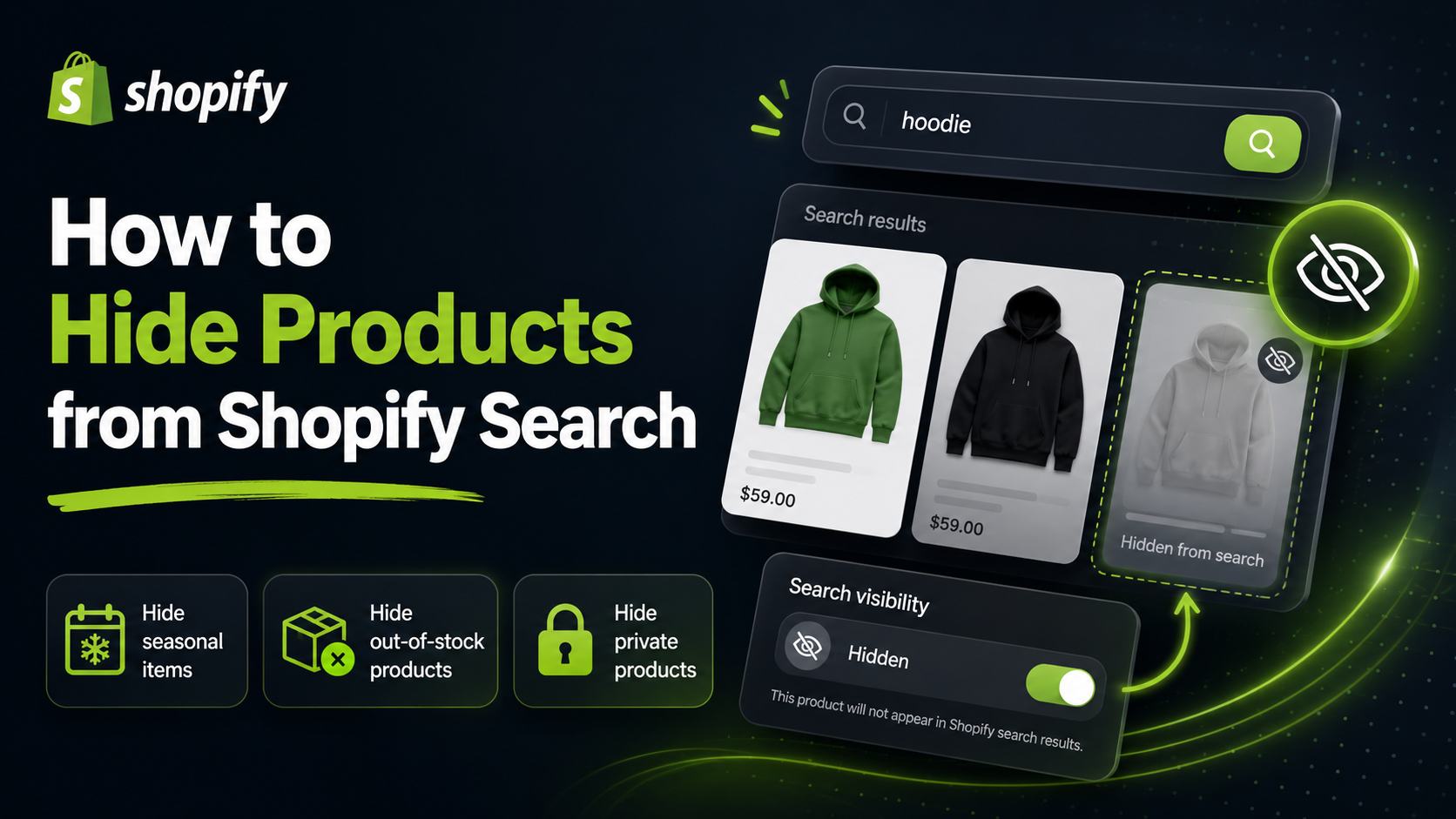
How to Hide Products from Shopify Search
Why You Might Want to Hide Products from Shopify Search
Most of the time you want every product to be discoverable. But there are legitimate reasons to keep specific products out of search results:
- Discontinued products you are keeping live for existing customers or SEO but do not want new customers to find.
- Internal or wholesale bundles visible only via direct link.
- Draft or incomplete products that are not yet ready for public discovery.
- Archived variants of products you still sell in current versions.
- Promotional products that should only appear during a specific period.
Shopify gives you several methods to hide products, each with different trade-offs. The right one depends on exactly what you want to achieve.
Method 1: Unpublish from the Online Store Channel
This is the most complete way to hide a product from everything — search, collections, and direct URL. If a product is not published to the Online Store channel, it does not exist for customers at all.
How to do it:
- Open the product in your Shopify admin.
- In the Sales channels section on the right, click Online Store.
- Set the availability to unavailable, or remove the Online Store channel entirely.
- Save.
The product will no longer appear in search results, collections, or direct URL access. Existing links will return a 404.
When to use it: When you want to completely remove a product from public access.
Method 2: Use the "Hide from Search Engines" Setting
In the product's Search engine listing preview section at the bottom of the product editor, there is a setting that controls whether the product sends a "noindex" signal to search engine crawlers. On most Shopify stores, this setting also affects whether the product appears in site search results.
How to do it:
- Open the product.
- Scroll to Search engine listing preview.
- Edit the listing and look for an option to deindex or hide the product.
Note: The behaviour of this setting varies slightly between themes and Shopify versions. Test it on a product before relying on it for a large batch.
When to use it: When you want a product accessible via direct link but invisible to search.
Method 3: Add a "hidden" or "nosearch" Tag
Some search apps — including Search Sight — support excluding products from search results based on a specific tag. You can tag any product with "hidden" or "nosearch" (the exact tag depends on the app's configuration) and it will be excluded from the search index while remaining accessible via direct URL and collections.
How to do it with Search Sight:
- Add the tag "nosearch" (or your configured exclusion tag) to the product.
- Search Sight will exclude it from the search index on the next sync.
When to use it: When you want a product in a collection or accessible via direct link but invisible to search queries.
Method 4: Remove from Specific Collections
If a product appears in search results because it is in a collection, removing it from those collections will reduce its visibility, though it will still appear in general keyword searches. This is not a reliable way to hide a product from search — it only affects collection-scoped browsing.
When to use it: When you want to reduce product exposure in browsing without removing it from search entirely.
Method 5: Set Products to "Draft" Status
A product in Draft status is completely inaccessible to customers — it does not appear in search, collections, or via direct URL. This is functionally the same as unpublishing from all channels.
How to do it: Open the product, change the status from "Active" to "Draft" in the top-right of the editor.
When to use it: For incomplete products that are not ready for any public access.
Managing Hidden Products at Scale
If you need to hide a large batch of products — say, all discontinued lines from a previous season — the most efficient approach is a bulk tag update. Export your product CSV, add the exclusion tag to the relevant rows, and re-import. This avoids editing each product individually.
For products you want to keep temporarily hidden (e.g. a product that returns after restocking), using a tag-based exclusion is more practical than unpublishing, because you can bulk-remove the tag when stock arrives.
What About Hiding Products from Google Search?
Hiding a product from your own Shopify site search does not automatically hide it from Google. If you want a product to be invisible to Google (external search engines), you need a "noindex" directive on the product page, typically managed through your SEO settings or the product's search engine listing.
For broader guidance on what Shopify does and does not index, see Shopify Search & Discovery: What It Does and Its Limits.
Handling Out-of-Stock and Discontinued Products
This is one of the most common hiding scenarios, and it deserves careful thought. A product that is temporarily out of stock is different from one that has been permanently discontinued:
Temporarily out of stock: Keep the product published and visible in search. Shopify's availability filter lets customers filter out-of-stock products if they want to, and keeping the page live maintains SEO value and allows customers to note the product for when it returns. Use the availability filter rather than hiding it.
Discontinued permanently: Consider whether the product has SEO value (inbound links, organic traffic). If yes, keep the page live but update it to indicate discontinuation and link to alternatives — hiding it loses the SEO equity. If no, unpublish it or use a tag-based exclusion to remove it from search results while keeping it accessible via direct URL for existing bookmarks.
Draft products in development: Always keep these as Draft status until they are ready. Publishing an incomplete product page creates a poor customer experience and can appear in search results before the listing is finalised.
A Note on the Tag-Based Exclusion Approach
When using a search app like Search Sight, the tag-based exclusion approach (adding a "nosearch" tag) is the most flexible option because it is non-destructive. The product remains in the catalogue, accessible via direct URL, and can be returned to search by removing the tag — no republishing, no status changes, no risk of losing product data.
This makes it the recommended method for managing discontinued lines, private products, and anything you want to exclude temporarily without fully archiving.
If your problem is the opposite — products that should appear in search but are not showing up — see why Shopify search is not finding your products.
Start your free 14-day trial of Search Sight and get granular control over what appears in your store's search results. Visit the Shopify search hub to learn more about the full feature set.