Blog
Shopify Product Filters and Faceted Search: A Guide
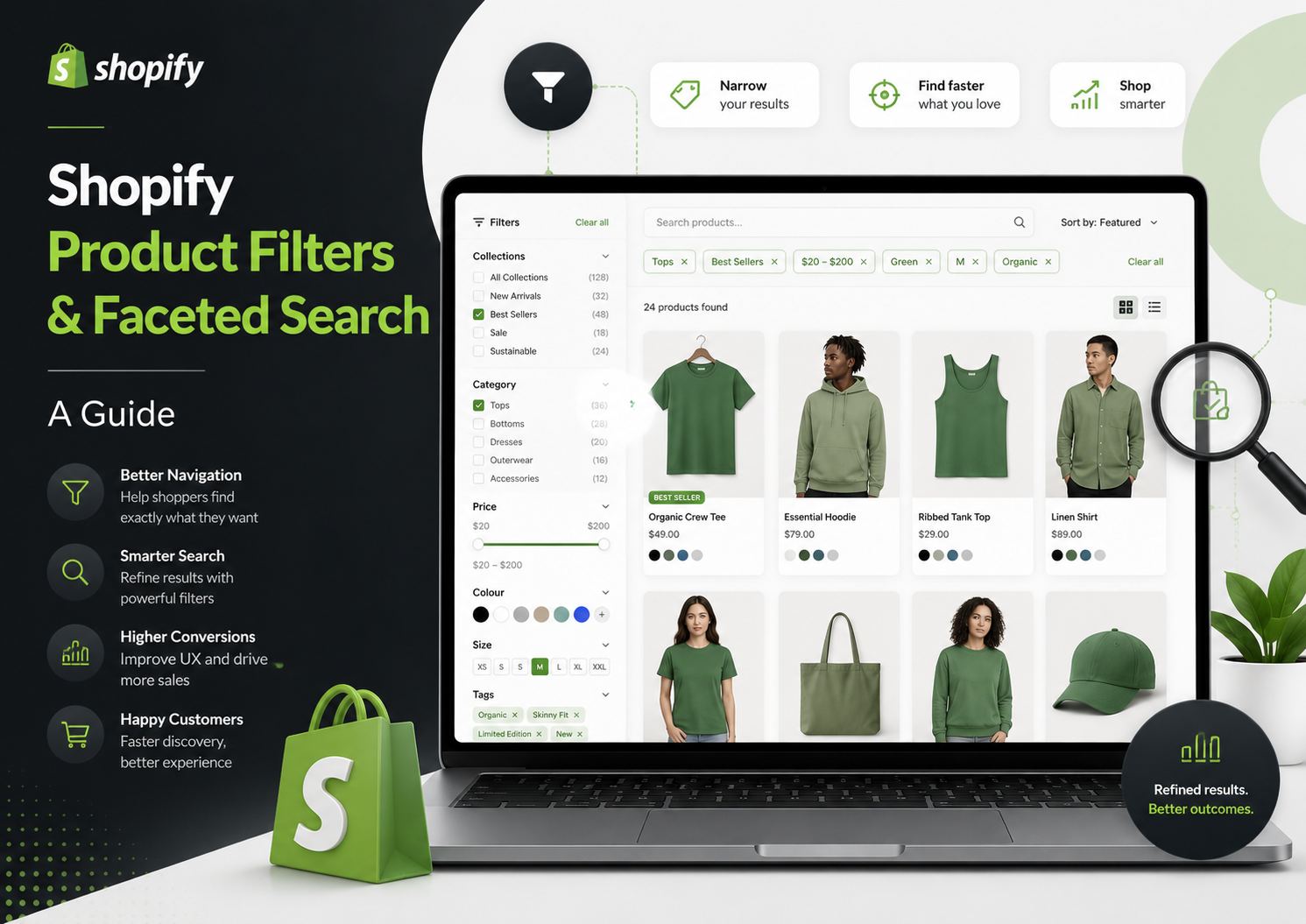
What Is Faceted Search?
Faceted search — sometimes called filtered search or layered navigation — lets customers apply multiple filters simultaneously to narrow down a set of results. Think of the sidebar on a fashion retailer's site: you select Size "M", Colour "Navy", Price "under £50", and Brand "Adidas" all at once, and the results update instantly without a page reload.
This is different from single-level filtering (selecting one category and getting all products in it) because the filters are additive and combinatorial. The customer is in control of the slice of your catalogue they want to see.
Done well, faceted search is one of the most powerful tools for converting browsers into buyers, particularly on stores with large catalogues and product variety.
Shopify Faceted Search: The Native Option
Shopify Search & Discovery (the free Shopify app) provides collection filtering that works as a form of faceted navigation. You can add filters based on:
- Price range (a price slider or min/max input)
- Product type (maps to the product type field in the admin)
- Vendor (the brand or supplier field)
- Availability (in stock / out of stock)
- Custom tag-based filters (e.g. a "Material" filter populated by tags like "material-cotton", "material-linen")
- Variant options (size, colour, and other options you have defined)
These filters work well on collection pages. A customer browsing the "Jackets" collection can filter by size and colour and get a useful, narrowed result set.
The Gap: Filters on the Search Results Page
This is where many merchants discover a frustrating limitation. The native Shopify filtered navigation applies to collection pages, but the search results page does not support the same faceted filtering experience by default.
When a customer types a query into the search bar and lands on the search results page, they typically see a flat list of products with no filter sidebar. They cannot narrow results by price, size, or colour. If they search "blue dress" and get 80 results, they are forced to scroll rather than filter.
This disconnect between the collection browsing experience and the search experience is a common reason merchants look for a dedicated search app.
Setting Up Native Collection Filters
If you want to set up filtering on your collection pages using Shopify Search & Discovery:
Step 1: Install or open Search & Discovery from the Shopify App Store (it is free).
Step 2: Go to the Filters section and click Add filter.
Step 3: Choose the filter type. For size and colour, choose "Option" and select the relevant product option. For custom attributes, create consistent tags (e.g. "colour-red", "colour-blue") and add a tag-based filter.
Step 4: Order your filters by dragging them into priority order. Price and availability typically perform best at the top.
Step 5: Set a maximum value count for each filter to avoid overwhelming dropdowns.
The filters will appear on all collection pages that use your theme's default collection template. Check that your theme supports the filter sidebar — Dawn and most Shopify 2.0 themes do natively.
Variant and Attribute Filtering
For variant-based filters (size, colour) to work correctly, your products need consistent option names. If some products use "Colour" and others use "Color" or "Shade", the filter will not aggregate them correctly. Audit your product option names and standardise them before setting up filters.
Similarly, tag-based filters only work if every product in a category that should appear in the filter has the relevant tag. Inconsistent tagging breaks the filter.
How Filters Affect Conversion
The conversion impact of good filtering is well-documented across ecommerce. Customers who use filters convert at higher rates than those who do not, because filtering is an expression of specific intent. A customer who has narrowed results to "size M, navy, under £60" is much closer to buying than one who is scrolling a 200-product list.
The corollary is also true: poor filtering — filters that return unexpected results, filters that do not update the product set correctly, or no filters at all — increases frustration and exit rates. Time spent auditing and fixing your filter setup is time well spent.
A few quick tests you should run on your own store:
- Apply two filters simultaneously (e.g. Size + Colour). Do results update correctly?
- Filter by an attribute and then remove one filter. Does the product count change as expected?
- Apply a price range filter on both a collection page and the search results page. Does the price slider exist on both?
If any of these fail, you have identified a filter problem worth fixing.
Going Further: Faceted Search on the Results Page
To bring the same faceted filtering experience to the search results page — not just collection pages — you need a dedicated search app.
Search Sight provides a full faceted results page that works for both search queries and collection browsing. Customers searching for "running shoes" can immediately narrow by size, colour, price range, brand, and availability without leaving the results context. The filters update in real time via AJAX — no full page reload.
Every plan includes:
- A full faceted results page with sidebar filters
- A price slider with configurable ranges
- Sort options (relevance, price ascending/descending, newest, best-selling)
- Filter by product type, vendor, tags, variants, and collections
- AJAX updates so the results change without a page reload
Performance Considerations for Faceted Search
One reason merchants sometimes hesitate to add many filters is the concern that it will slow the page down. With native Shopify collection filtering, each filter change triggers a page request. AJAX-based filtering — which updates only the product grid without reloading the full page — is faster and provides a better experience.
Search Sight's faceted results use AJAX throughout: filter selections, price slider adjustments, sort changes, and pagination all update the product list without a full page reload. Response times are sub-50ms from the search index, so the experience feels near-instant even on slower connections.
Native Shopify collection filtering, by contrast, typically triggers a full URL change and page reload for each filter interaction. For stores on high-traffic collection pages, this can create a noticeably sluggish experience compared to AJAX-driven filtering.
Filter Design Best Practices
The technical setup of filters matters, but so does the design. A few principles for good filter UX:
Show product counts. Displaying "(23)" next to a filter option tells the customer how many results they will see before they click. This prevents wasted clicks on filters that would result in very few or zero products.
Collapse long filter lists. A size filter with 40 values should show the top 8-10 with a "Show more" toggle. Overwhelming the customer with options reduces the usability of the filter panel.
Make active filters visible. When a customer has applied filters, show them clearly at the top of the results as removable chips or tags. "Size: M | Colour: Navy | x Clear all" — this pattern lets customers see and remove their current filter state without hunting through the sidebar.
Price filter as a slider. For price filtering, a dual-handle slider (set min and max) is consistently better than a list of price ranges, because it adapts to the actual price distribution of your catalogue without requiring manual range configuration.
For guidance on filtering by specific attributes like tags, variants, and collections, see our post on how to filter by tag, variant and collection in Shopify. For a broader view of improving the overall search experience, see how to improve Shopify search.
Start your free 14-day trial of Search Sight and give your customers a filter experience that works on both search results and collections.
Search Sight is built specifically for Shopify search — install it from the App Store in about five minutes.