Blog
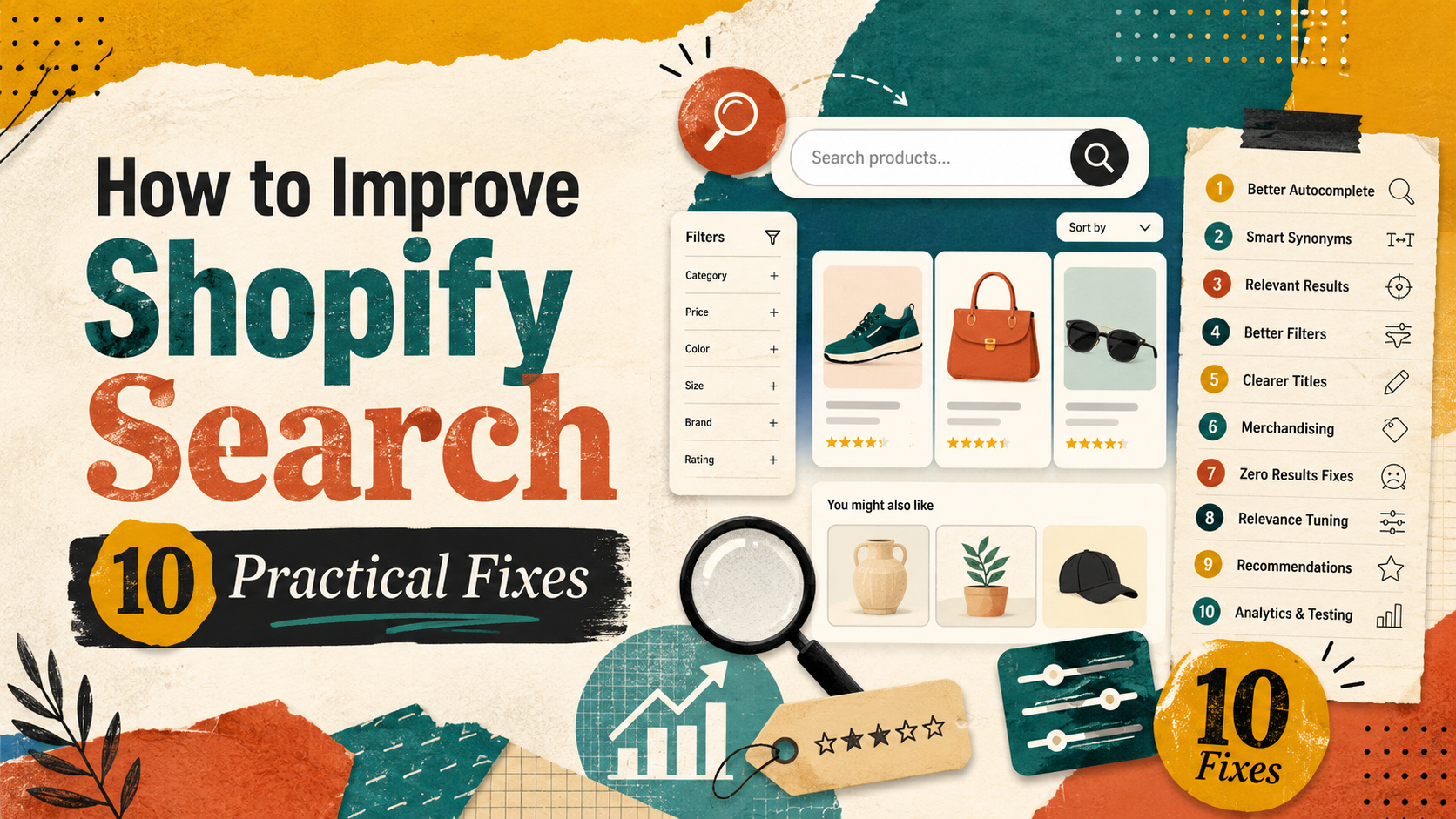
How to Improve Shopify Search (10 Practical Fixes)
Why Shopify Search Matters More Than You Think
Search is the highest-intent action a visitor can take on your store. Someone who types a query into the search bar already wants to buy — they just need to find the right product. Yet most merchants spend thousands on ads and almost nothing on the experience that greets their most motivated visitors.
If you want to improve Shopify search, the fixes range from free configuration tweaks inside the Shopify admin to installing a dedicated search app. This guide covers both ends of that spectrum so you can choose what fits your store today.
1. Make Sure Your Products Are Fully Indexed
Shopify indexes product titles, descriptions, tags, and variant titles. If your products are not showing up for relevant queries, the first thing to check is whether those fields are populated and accurate. A product titled "Blue Widget Mk2" will never surface for someone searching "azure widget" unless you add "azure" as a synonym or include it in the description.
Go through your top 20 products and ask: does the copy actually contain the words a shopper would use? Fix mismatches before anything else.
2. Clean Up and Expand Your Product Tags
Shopify's native Search & Discovery app uses tags as a filter source, and the search index reads them too. Inconsistent tagging — "mens", "men's", "Mens", "for-men" — fragments your results and makes filters look broken. Standardise your tag taxonomy and you will see an immediate improvement in both search accuracy and filter usability.
3. Fill in All Variant Titles and Option Names
If you sell a jumper in five colours and the colours are only visible inside the product editor, not in the public variant titles, a customer searching for "burgundy jumper" may see zero results. Make sure every variant and option name is descriptive and uses language real customers type.
4. Write Descriptions That Include Natural Search Language
Product descriptions are not just for persuasion — they feed the search index. Include the category ("leather wallet"), the use case ("slim card holder for travel"), and common synonyms or colloquialisms in your descriptions. This alone can dramatically improve recall for long-tail searches.
5. Use Shopify's Built-in Synonym Groups
Shopify Search & Discovery (the free app from Shopify) lets you create synonym groups in the admin. If customers search "sofa" but you call them "sofas" in your catalogue, add a synonym. This is a quick win that costs nothing and takes under ten minutes.
6. Enable Predictive Search (Autocomplete)
Out of the box, most Shopify themes support predictive search — the dropdown that shows results as you type. If yours does not, check your theme settings under Online Store > Themes > Customise > Header. Enabling predictive search reduces the friction between intent and product page. For more on this, see our guide on how to add predictive search to Shopify.
7. Add Filters to Your Search Results Page
Unfiltered search results force customers to scroll through irrelevant products. Shopify Search & Discovery lets you add filters based on product type, vendor, price, and tags. Set these up for every major category. If you want more advanced filtering — like filtering by variant attributes or combining multiple conditions — that is where a dedicated app helps. See our full guide on Shopify product filters and faceted search.
8. Monitor Your No-Results Queries
Every search that returns zero results is a lost sale and a piece of diagnostic gold. Shopify does not expose no-results data natively, but third-party search apps like Search Sight do. Review your no-results report monthly. Common fixes: add a synonym, create the product, adjust a tag, or set up a redirect to a relevant collection.
9. Set Up Search Redirections for Key Terms
If someone searches "sale" or "new arrivals" or your brand name, they do not want a list of matching products — they want a specific collection page. Both Shopify Search & Discovery and dedicated apps let you create redirections: a search for "gift ideas" sends the customer to your curated gift collection. Set up redirections for your top navigational queries.
10. Upgrade to a Dedicated Search App When You Outgrow Native Search
Shopify's free Search & Discovery app is a solid baseline, and for smaller catalogues it is often enough. But as your catalogue grows, its limitations show: no typo tolerance, limited analytics, no faceted search on the results page, and no control over result ranking. If you are seeing high search bounce rates or customers complaining they cannot find products you know you stock, it is time to upgrade.
A dedicated app like Search Sight adds AI-powered, typo-tolerant search delivering results in under 50ms, instant AJAX autocomplete, a full faceted results page with price sliders and sort options, synonyms, featured product pinning, analytics, and a no-results report — all for around £7 to £129 per month depending on catalogue size.
9. Use Search Analytics to Find What Is Broken
Every Shopify admin shows a list of top search queries, but that is only half the picture. The other half — queries that returned zero results or resulted in an immediate exit — is where you find the problems. Review your analytics monthly and look for:
- High-frequency queries returning no results (add synonyms or create the product)
- High-frequency queries with a high exit rate (the results exist but they are wrong — fix your product data or merchandising)
- Low-frequency queries for products you stock (customers cannot find them via search — check tags and descriptions)
Search Sight's analytics dashboard surfaces all three, including a dedicated no-results report. Without this data, search optimisation is largely guesswork.
10. Set Up Featured Products for Key Commercial Queries
Not all search queries are equal. A customer searching "gift ideas for him" is in a high-intent, gift-giving mindset and deserves to be shown your best-converting gift products — not a random sample of your catalogue sorted by relevance score.
Featured product pinning lets you fix specific products to the top of results for specific queries. This is different from a global product boost (which lifts a product across all searches) — it is per-query control. Use it for:
- Gift-intent queries ("birthday gift", "anniversary present")
- Your own brand or product line names
- Top promotional terms during sale periods
- Category terms where you have a standout product you want to lead with
This feature is available in Search Sight on all plans and is one of the most direct ways to connect high-intent searches to high-converting products.
Where to Start
If your store has fewer than 500 products and a simple catalogue, start with fixes 1 through 7 — they are free and can be done today. If you have a large catalogue, complex variants, or you are seeing significant search abandonment, move straight to evaluating a dedicated app.
Start your free 14-day trial of Search Sight and see what your customers are really searching for.