Blog
How to Add Predictive Search to Shopify
What Is Shopify Predictive Search?
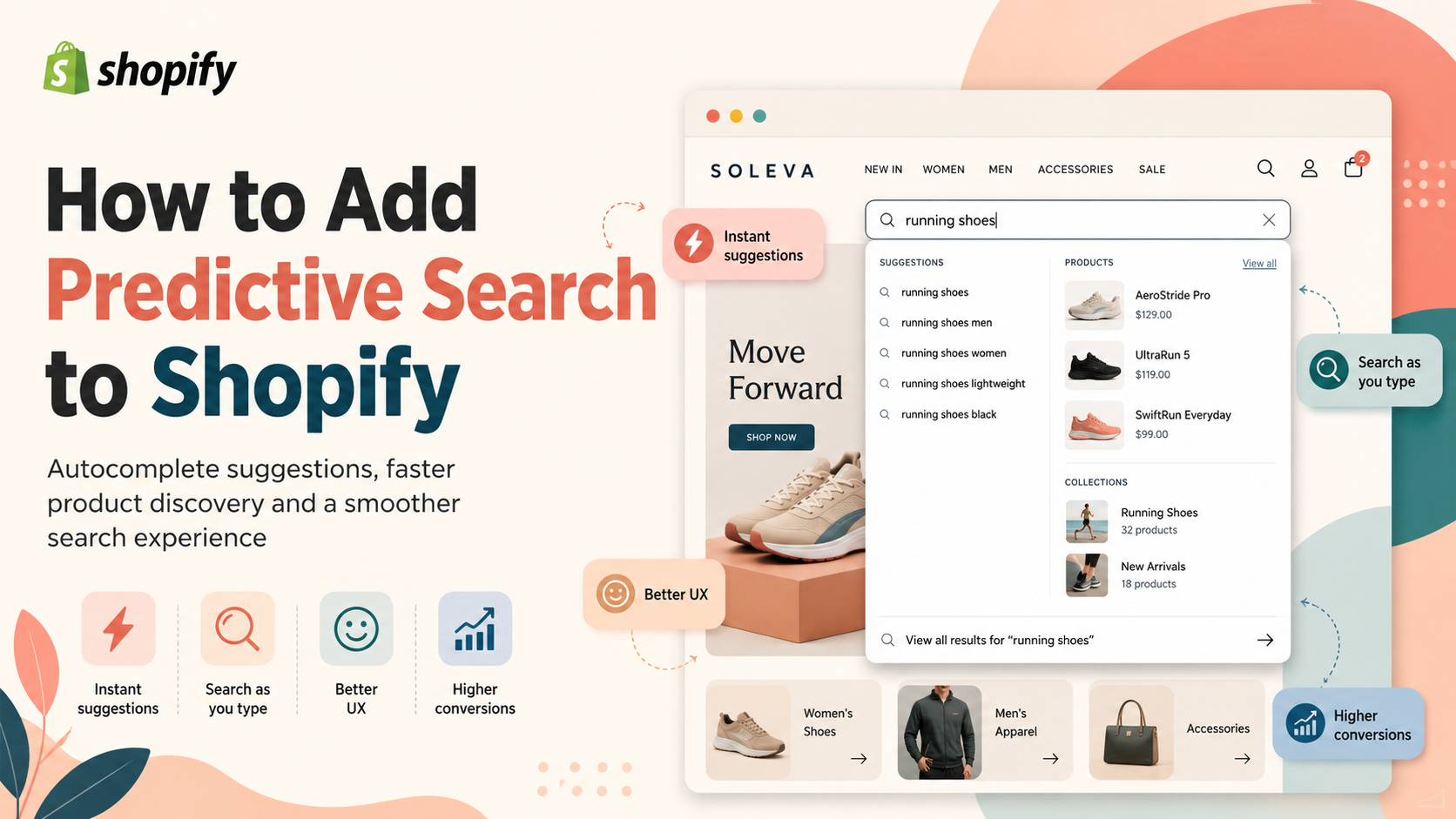
Shopify predictive search is the autocomplete dropdown that appears below the search bar as a customer begins typing. Rather than waiting for the customer to press Enter and land on a full results page, predictive search surfaces matching products, collections, pages, and articles instantly — usually after just two or three characters.
Done well, it is one of the highest-impact UX improvements you can make to a Shopify store. Customers find products faster, friction drops, and conversion rates go up.
How Shopify Predictive Search Works Natively
Shopify exposes a Predictive Search API that theme developers can call via JavaScript. Most modern themes — Dawn, Sense, Craft, Refresh, and others built on Shopify's Online Store 2.0 framework — include predictive search out of the box.
The API returns up to a configured number of results across four resource types: products, collections, pages, and articles. Results are ranked by relevance using Shopify's search engine, which means the same index that powers your main search bar also powers the autocomplete.
How to Enable Predictive Search in Your Theme
For most Shopify 2.0 themes, predictive search is already built in but may need to be switched on:
- Go to Online Store > Themes > Customise.
- Open the Header section (or search for "search" in the left panel).
- Look for a setting labelled "Enable predictive search", "Show search suggestions", or similar.
- Toggle it on and save.
If you cannot find a toggle, check your theme documentation. Some themes implement predictive search automatically with no setting required. Others — particularly older or heavily customised themes — may not support it and will need code changes or a third-party app.
Customising Predictive Search in a Native Theme
Most themes let you configure the number of predictive results shown (typically between 3 and 10), and whether to show product images in the dropdown alongside titles and prices. Keep the number low enough that the dropdown does not overwhelm the screen — 4 to 6 products is a common sweet spot.
You can also control which resource types appear. If your blog articles are not relevant to product discovery, disable articles from the predictive results. Showing irrelevant content in the autocomplete increases visual noise without helping the customer.
The Limits of Native Predictive Search
Native Shopify predictive search has the same fundamental constraint as the broader Shopify search engine: it is primarily exact-match. If a customer types "sneakers" but your products are tagged as "trainers", they will see few or no autocomplete suggestions — even if you have 50 relevant products in stock.
Additionally, the native autocomplete only shows products; it cannot show popular search term suggestions ("Did you mean: running shoes?"), category shortcuts, or contextual banners. The layout is controlled by your theme and is hard to customise without editing Liquid files.
For stores with large or complex catalogues, these limitations meaningfully reduce the value of the autocomplete experience.
Upgrading to Instant AJAX Autocomplete
Search Sight replaces the native predictive search with its own instant AJAX autocomplete that queries a dedicated Meilisearch index rather than Shopify's built-in search. The result is:
- Sub-50ms response times — the dropdown updates almost instantaneously as the customer types.
- Typo tolerance — "sneakres" still finds "sneakers".
- Variant and attribute indexing — if a customer types a colour or size, matching variants surface in the autocomplete.
- Consistent results — the same typo-tolerant, AI-powered index powers both the autocomplete and the full results page, so there are no surprises when the customer presses Enter.
Setup takes around five minutes from the Shopify App Store. There is no theme code to edit.
Measuring Predictive Search Performance
How do you know if your predictive search is working? Watch for these signals in your analytics:
Good signs:
- Customers click autocomplete suggestions rather than pressing Enter (they are finding results before the full results page loads)
- Low search exit rate (customers who search do not immediately leave the site)
- Short paths from search to product page to add-to-cart
Warning signs:
- Customers open the autocomplete, see the dropdown, and close it without clicking anything
- High zero-result rates for queries that should find products
- Customers click the first autocomplete result and then immediately click back
The second set of signs usually points to a vocabulary mismatch (your product names do not match what customers type) or to missing products from the search index. Typo tolerance fixes a large proportion of these issues automatically.
Styling the Predictive Search Dropdown
One often-overlooked aspect of predictive search is how it looks. The autocomplete dropdown is typically rendered by your theme, and most themes apply basic styling that matches the overall design. But a few principles help:
Show product images. A text-only autocomplete list is harder to scan than one with thumbnail images alongside product names. Most themes that support predictive search include images in the dropdown. If yours does not, check whether your theme's predictive search template can be updated to include the featured image.
Include the price. Showing the price in the autocomplete result reduces a step — the customer can pre-qualify whether the product is in their budget before clicking through.
Highlight the search term. Good autocomplete implementations bold or highlight the characters that match what the customer typed, making it easier to understand which part of the result matched their query.
Keep it uncluttered. Showing product title, image, price, and possibly the collection is usually enough. Showing full descriptions, metafields, or too many results creates visual noise.
Predictive Search and Mobile UX
On mobile, predictive search behaves differently from desktop. The virtual keyboard takes up a significant portion of the screen, which means the autocomplete dropdown has limited vertical space to work with. A dropdown that shows 8 results on desktop may only show 3 on mobile without scrolling.
Test your predictive search on a real mobile device. The things to check:
- Does the dropdown open below the input field or above it (it should open in a direction that has space)?
- Can the customer see at least 3 results without scrolling?
- Does the dropdown close cleanly when the customer taps a result?
- Does the keyboard dismiss properly after a result is selected?
These details are usually handled by your theme's JavaScript, but they are worth verifying because mobile is typically the majority of a Shopify store's traffic.
When Native Predictive Search Is Enough
If your store has a small, well-named catalogue (under a few hundred products) and your product titles use vocabulary customers naturally type, native predictive search will serve you well. Enable it, configure it cleanly, and move on.
If you are seeing customers open the autocomplete dropdown, find nothing relevant, and bounce — or if your analytics show high search exit rates — that is a signal to upgrade.
For more guidance on the broader search experience, see our guides on how to improve Shopify search and Shopify product filters and faceted search.
Start your free 14-day trial of Search Sight and see the difference a properly tuned autocomplete makes.
Search Sight is part of a complete Shopify search upgrade — one install, all features included on every plan.