Blog
Shopify Search Synonyms and Merchandising: Sell More
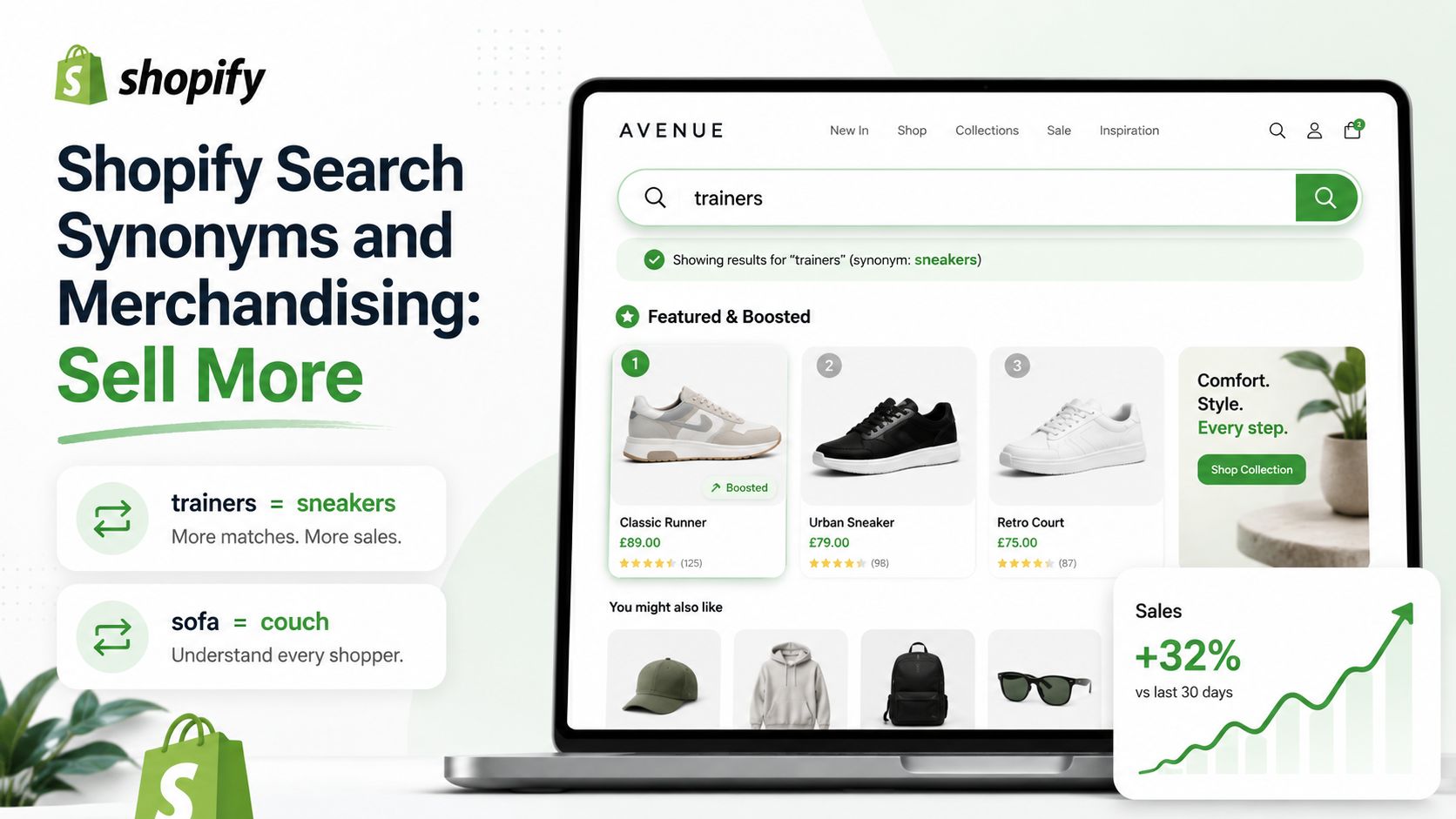
Why Synonyms and Merchandising Are Underused Conversion Tools
Most Shopify merchants set up their search and then forget it. They never look at what customers are actually typing, and they never configure the search to respond intelligently to that vocabulary. The result is a search experience that works for customers who already know your product names — and fails everyone else.
Synonyms and merchandising rules are the tools that bridge the gap between how customers describe products and how you label them in your catalogue. Configuring them well is one of the highest-return optimisations available in any Shopify store.
What Are Shopify Search Synonyms?
A synonym in Shopify search is a rule that says: "treat these words as equivalent when a customer searches." There are two types:
Bidirectional (equivalent) synonyms. A search for any word in the group returns results for all of them. Example: "sofa" = "couch" = "settee" = "three-seater". A customer searching any of these terms sees the same results.
One-way synonyms. A specific term maps to another, but not the reverse. Example: "sale" maps to "clearance", but "clearance" does not also map to "sale". Useful when a general term should surface a specific product set.
Both types are available in the free Shopify Search & Discovery app, and in dedicated apps like Search Sight.
How to Add Synonyms in Shopify Search & Discovery
- Open Search & Discovery from your Shopify App Store apps.
- Click Synonyms in the left navigation.
- Click Create synonym.
- Choose Equivalent or One-way.
- Enter the synonym terms, one per line.
- Save.
Synonyms take effect within a few minutes. Test them by using your store's search bar directly.
Building a Good Synonym Strategy
Do not add synonyms randomly. Build your synonym list from data:
Start with your no-results queries. If your search analytics show that "trainers" returns zero results but you sell running shoes, add a synonym immediately. No-results queries are your highest-priority synonym opportunities.
Interview your customers (or your support team). What words do customers use when they call or email to ask about products? These are the vocabulary gaps your synonym list should fill.
Consider regional vocabulary. UK and US English differ substantially in product naming: "jumper" vs. "sweater", "trainers" vs. "sneakers", "plimsolls" vs. "canvas shoes". If you sell internationally, cover both.
Include misspellings for high-value products. For your most important products, add common misspellings as one-way synonyms pointing to the correct term. This partly compensates for the lack of typo tolerance in native Shopify search (though a dedicated app with built-in typo tolerance is a more complete solution).
What Is Search Merchandising?
Merchandising goes beyond matching vocabulary — it is about controlling which products appear in which positions for specific queries, and what additional content surrounds them.
The key merchandising tools available in Shopify and dedicated apps include:
Pinned (featured) products. Fix a specific product to the top of results for a given query. Example: when someone searches "gift ideas", pin your most popular gift set to position 1. This is useful for steering customers towards high-margin or high-conversion products.
Buried products. Push specific products to the bottom of results for a query. Useful for surfacing newer products over older ones, or for keeping clearance stock from dominating results for a popular category term.
Redirections. Instead of returning a product list, send the customer to a specific page when they type a given query. "Returns" redirects to your returns policy page. "Gift cards" redirects to your gift card product page. "New arrivals" redirects to your New In collection.
Search banners. Display a promotional banner above results for specific queries. "Summer sale" search shows a banner with a coupon code. "New collection" shows a campaign image. This is a feature available in dedicated search apps like Search Sight but not in the native Shopify Search & Discovery.
Setting Up Redirections in Shopify
- Open Search & Discovery.
- Click Search redirects.
- Click Add redirect.
- Enter the search term and the destination URL (can be a page, collection, or external URL).
- Save.
Test by typing the exact search term in your store. You should be sent directly to the destination without a results page.
Advanced Merchandising with Search Sight
Search Sight extends the native merchandising tools with:
- Per-query featured products — pin specific products to specific searches, not just globally.
- Search banners — display custom banners above results for any query.
- Analytics-driven optimisation — see which searches lead to purchases and which lead to exits, so you can prioritise where to apply merchandising rules.
- No-results report — a list of queries that returned zero results, sorted by frequency, so you know exactly which synonyms to add next.
Synonyms and merchandising without data are guesswork. The analytics layer is what turns them into a systematic conversion optimisation process.
A Practical Workflow: From Data to Action
The merchants who get the most from synonyms and merchandising treat it as a recurring process, not a one-time setup. Here is a simple monthly workflow:
Week 1 of each month: Pull your no-results report and top search queries from your analytics. Identify the three to five highest-frequency no-results queries. Add synonyms for any that represent vocabulary mismatches.
Week 2: Review your search exit rate for the top 20 queries (customers who searched and then left without clicking a result). For each high-exit query that does return results, investigate why — are the results genuinely irrelevant? Is the merchandising order wrong? Are the product images or titles not matching expectations?
Week 3: Update merchandising rules based on your findings. Add or adjust pinned products for queries where you have identified a better answer. Set up redirections for any navigational queries that appeared in the top searches.
Week 4: Review the impact. Did no-results frequency drop? Did search exit rate improve for the queries you worked on?
This cycle takes about an hour a month and compounds significantly over time. A store that has been running this process for 12 months has a materially better-tuned search experience than one that set up synonyms once and never revisited them.
The Connection Between Synonyms and Typo Tolerance
It is worth being clear about what synonyms can and cannot do. Synonyms fix vocabulary gaps — cases where your terminology differs from your customers'. They do not fix spelling errors. A customer who types "jewllery" instead of "jewellery" will still get zero results even if you have a comprehensive synonym list, because Shopify's native search does not perform fuzzy matching.
For typo tolerance, you need a dedicated search engine. Search Sight's AI-powered search handles misspellings automatically without you needing to add every common error as a manual synonym. The two tools are complementary: synonyms handle intentional vocabulary differences; typo tolerance handles accidental spelling errors.
For context on how these features fit into the broader search experience, see how to improve Shopify search and our overview of Shopify Search & Discovery.
Start your free 14-day trial of Search Sight — synonyms, merchandising, and analytics are all included on every plan.
Everything described here is part of the complete Shopify search upgrade Search Sight provides.