Blog
Adding Search to WooCommerce in Elementor and Divi
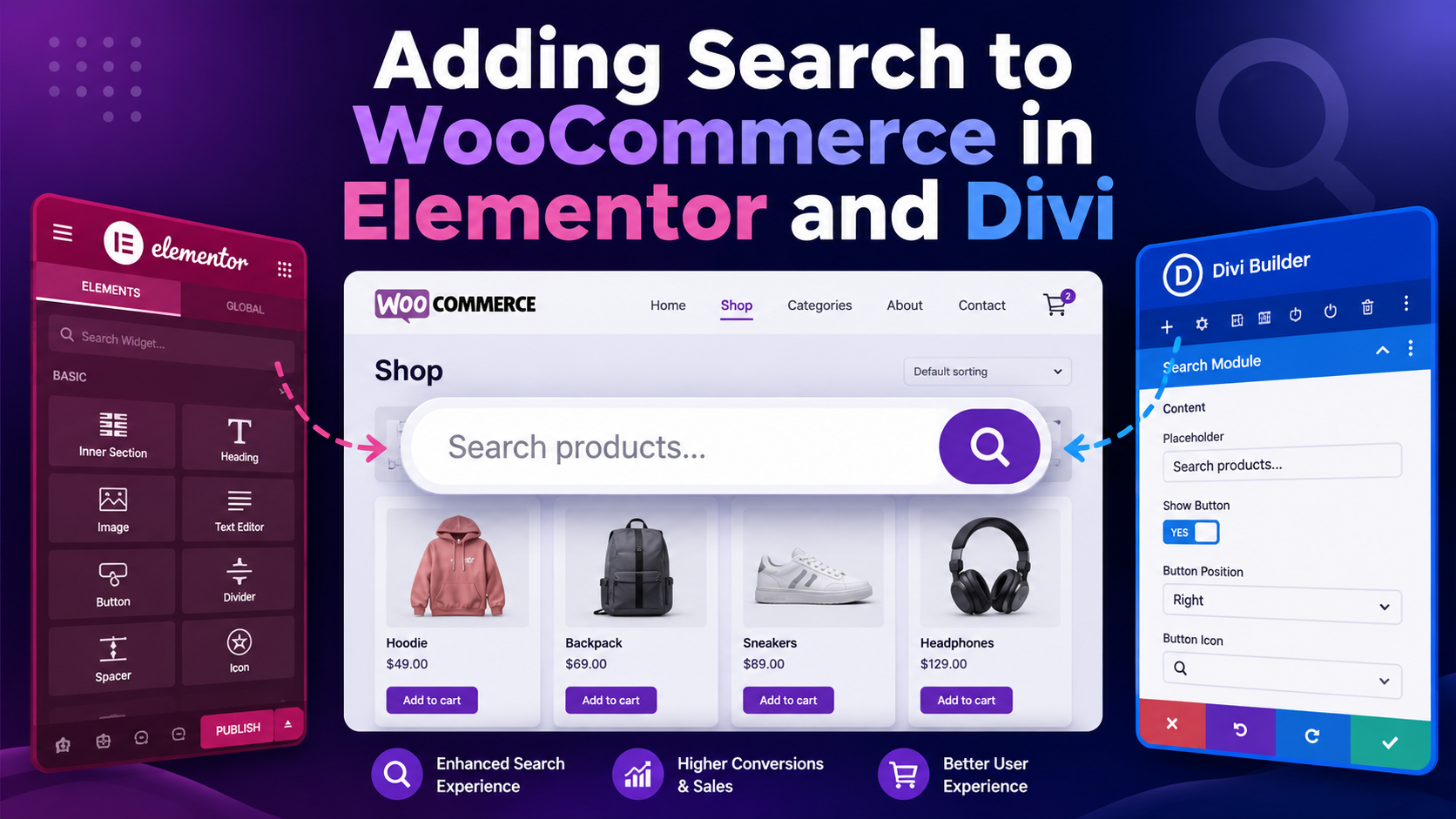
How to add WooCommerce search in Elementor
Adding a WooCommerce search bar in Elementor takes under five minutes. The most reliable method is to use the built-in WordPress Search widget as an Elementor element, or to place Elementor's own Search widget in your header template.
Here is the step-by-step process for Elementor:
- Open your header template in Elementor. Go to Templates > Theme Builder > Header, then click Edit with Elementor on your active header.
- In the Elementor widget panel, search for "Search". You will find either the core WordPress Search widget or, if you have Elementor Pro, the dedicated Search widget.
- Drag it into your header layout — typically in the right-hand column next to the navigation.
- In the widget settings, configure the placeholder text, button label, and styling.
- Click Update to save the header template.
- In the Display Conditions panel, ensure the header is set to display site-wide.
With Elementor Pro's Search widget, you get slightly more styling control, but both options place a functional search bar in your header.
How to add WooCommerce search in Divi
Divi handles this slightly differently because of its module system:
- Open the Divi Theme Builder (Divi > Theme Builder).
- Edit your Global Header (or create one if you haven't set a custom header yet).
- Click the "+" to add a new module and search for "Search".
- Add the Search module to your header row.
- Configure the placeholder text and button visibility in the module settings.
- Style the search bar using Divi's Design tab — background colour, border radius, padding, and font.
- Save the header.
Divi's Search module is a thin wrapper around WordPress's core search form. It submits to the WooCommerce search results page the same way any other search bar does.
The limitation both page builders share
Both Elementor and Divi's native search widgets are just styled forms that submit to WooCommerce's default search engine. They give you a nice-looking search bar, but the search engine behind it is still WordPress's basic SQL search — which ignores SKUs, attributes, categories, and variations, and has no typo tolerance or instant autocomplete.
This is the gap that a dedicated WooCommerce search plugin fills. The plugin replaces the search engine, not the search bar form. Your Elementor or Divi header keeps its exact design — the plugin intercepts the query before it reaches WooCommerce and returns better results.
Upgrading WooCommerce search in Elementor with Search Sight
Search Sight is fully compatible with Elementor-built sites. Here is how the integration works:
- Sign up for Search Sight and begin your 14-day free trial.
- Download the WooCommerce connector at sign-up, then upload and activate the plugin ZIP in WordPress (Plugins > Add New > Upload Plugin).
- The connector adds an AJAX autocomplete dropdown to your existing search bars — including any search bar built in Elementor. No changes to your Elementor layout are needed.
- As shoppers type in your Elementor header search bar, instant product suggestions appear below it. These suggestions pull from Search Sight's index, showing product images, names, prices, and SKUs in under 50 milliseconds.
- When a shopper presses Enter or clicks a suggestion, they are taken to Search Sight's faceted results page — a fully functional results page with filters and sorting.
The visual output — colours, fonts, input border styling — still comes from your Elementor design. Search Sight layers the autocomplete functionality on top.
Using the Search Sight widget in Elementor
Beyond upgrading your existing search bar, Search Sight provides a standalone search widget that you can place anywhere in your Elementor layout:
- After activating the Search Sight connector, a new widget called "Search Sight Search" appears in Elementor's widget panel.
- Drag it anywhere in your layout — header, hero section, sidebar, or a dedicated search section on a landing page.
- Configure the placeholder text and button label in the widget settings.
- The widget comes pre-wired to Search Sight — no additional setup needed.
This is useful if you want to add search to a page that currently has no search bar, such as a homepage hero or a category landing page built in Elementor.
Divi and Search Sight: the same approach
The Search Sight connector works identically with Divi. After activation:
- Your existing Divi header search bar gains instant AJAX autocomplete.
- A Search Sight Search shortcode is also available (place it anywhere in a Divi Code module).
- The autocomplete styles can be adjusted in the Search Sight dashboard to match your Divi theme colours.
Because Divi renders its header with PHP, the search form it outputs is standard HTML — which the Search Sight connector hooks into the same way it does for any other form.
Common questions about search with page builders
Will Search Sight break my Elementor layout? No. It does not modify your templates or inject elements into your Elementor structure. It attaches a JavaScript listener to your existing search inputs.
Do I need Elementor Pro for this to work? No. The free version of Elementor is sufficient. Search Sight works with the basic Search widget available in all versions.
My Divi header uses a "sticky" header that overlaps the page — will the autocomplete dropdown appear correctly? Yes. Search Sight's dropdown uses a high z-index to appear above sticky elements.
I use a third-party Elementor header from a kit — will it work? Yes, as long as the header contains a standard HTML search form (an input element with a search submit), Search Sight will attach to it.
Testing search on your page-builder site
After setting up Search Sight on an Elementor or Divi site, run these checks to confirm everything is working:
- Type a query in your header search bar and confirm the autocomplete dropdown appears within a fraction of a second.
- Submit a search and confirm you land on Search Sight's results page, not the default WooCommerce archive.
- Check on mobile — confirm the autocomplete dropdown displays correctly within your header's mobile layout.
- Test a query with a deliberate typo to confirm typo tolerance is active.
- Check that your header styling (colours, fonts, border radius) is consistent with the search bar's appearance — both should follow your Elementor or Divi theme settings.
If the autocomplete dropdown clips behind other header elements (common with mega-menus or sticky headers), adjust the z-index in your Elementor or Divi global CSS, or contact Search Sight's support team. The dropdown's default z-index is high, but particularly complex header structures occasionally need a manual adjustment.
Related guides
- How to Add a Search Bar to WooCommerce (The Complete Guide) — general search bar placement options
- How to Customise the WooCommerce Search Results Page — styling the page shoppers land on after searching
Start your free 14-day trial and upgrade your Elementor or Divi site search to fast, AI-powered product discovery.