Blog
How to Customise the WooCommerce Search Results Page
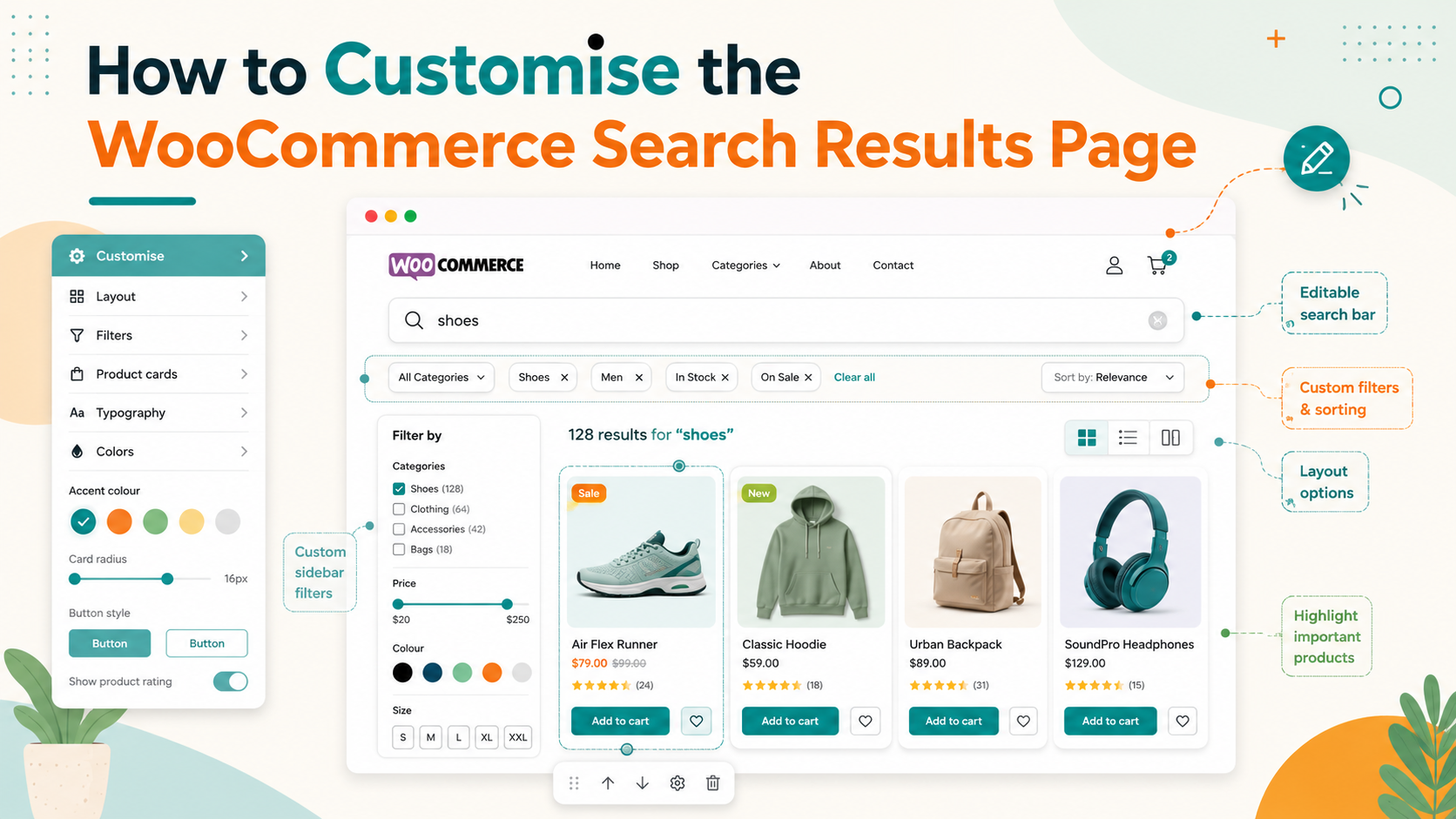
What is the WooCommerce search results page?
The WooCommerce search results page is the page shoppers land on after submitting a search query. By default, WooCommerce displays results using the standard WordPress archive template — the same template used for category and tag pages. It shows a grid of product cards with the product image, title, price, and an "Add to Cart" button.
The default page gets the job done for very small stores, but it has significant limitations for anything more than a basic catalogue: no dynamic filters, no relevance sorting, minimal control over layout, and no integration with your actual search engine's output.
Limitations of the default WooCommerce search results page
Understanding what the default page cannot do helps clarify the value of customising it:
- No dynamic filters. Shoppers cannot narrow results by category, attribute, or price range on the search results page using native WooCommerce. They would need to leave the results page and browse a filtered category instead.
- Poor relevance ordering. The default page orders results by date (newest first) or a simple title match — not by how well the product matches the query.
- No "no results" guidance. When a search returns nothing, shoppers see an empty page or a generic "No products found" message with no suggestions.
- No search analytics. You cannot see what shoppers searched for or what they found.
- No promoted or featured results. You cannot surface specific products at the top of results for key queries.
Option 1 — customise the default template with your theme
Most WooCommerce-compatible themes allow you to override the search results template. You would create a file called search.php (or archive-product.php depending on how WooCommerce routes the query) in your child theme and customise the loop that renders products.
This approach gives you control over the product card layout — adding badges, changing the image aspect ratio, adjusting the grid columns — but it does not fix the underlying search engine or add dynamic filters. It is a cosmetic change to the template rather than a functional upgrade.
Option 2 — replace the results page with a dedicated search plugin
The more practical approach for most stores is to use a search plugin that provides its own results page. Search Sight replaces WooCommerce's default search results page with a purpose-built results page that includes:
- Faceted filters: attribute checkboxes, category filter, and price range slider that update results via AJAX without page reloads.
- Sort controls: relevance (default), price ascending, price descending, newest.
- AI-ranked results: products are ordered by how well they match the query, not by post date.
- No-results handling: if a query returns zero results, Search Sight shows suggested queries and popular products rather than an empty page.
- Featured results: you can pin specific products to the top of results for chosen queries from the dashboard.
- Promotional banners: display a custom banner at the top of results for specific search terms — useful for promotions and seasonal campaigns.
Setting up the Search Sight results page
- Sign up and begin your 14-day free trial.
- Download the WooCommerce connector at sign-up, upload the ZIP to WordPress (Plugins > Add New > Upload Plugin), and activate.
- The connector automatically intercepts WooCommerce search requests and routes them to Search Sight's results page.
- The results page uses your site's theme header and footer, so it visually matches the rest of your store.
No shortcodes or template edits are required. The transition from the default results page to Search Sight's results page is seamless — the URL structure (?s=query) stays the same.
Customising the Search Sight results page
Within the Search Sight dashboard you can configure:
- Which attribute facets appear and in what order. Hide facets that are not useful as filters.
- Number of results per page (default 24; configurable).
- Product card layout — grid or list view, with toggle for shoppers.
- Featured products — pin specific products to the top of results for defined queries.
- Promotional banners — add a banner image and link that appears above results for specific queries.
- Search redirections — redirect specific queries directly to a URL (a product, category, or landing page) instead of showing results.
For additional styling control, Search Sight's CSS is namespaced so your own stylesheet can override colours, spacing, and typography without conflicts.
Improving no-results pages
A no-results page that shows nothing is a dead end. Shoppers typically leave when they see it. A well-designed no-results state should:
- Acknowledge the query that returned nothing
- Suggest alternative queries or related searches
- Show popular or featured products as a fallback
- Invite the shopper to browse a relevant category
Search Sight's no-results handling does all of this automatically. You can also create manual no-results responses for common failed queries — for example, redirecting a query that consistently returns no results to a specific category page.
For a deeper analysis of why searches return no results, see WooCommerce Search Not Showing Products: 12 Common Causes and Fixes.
Search results page and SEO
The search results page is typically noindexed (Search Sight includes this by default following standard SEO practice), so changes to it do not affect your organic search rankings. However, a better results page directly improves on-site conversion — and a higher on-site conversion rate feeds positively into engagement signals that do affect SEO over time.
Analytics for the results page
Search Sight's analytics dashboard shows you:
- Most searched queries
- Click-through rates for specific queries (which product did shoppers click after a given search)
- Zero-results queries
- Search volume over time
This data is available for every plan and helps you make informed decisions about which products to feature, which synonyms to add, and which catalogue gaps to address.
Featured products and promotional banners on the results page
Two features that make the search results page a commercial tool rather than just a utility:
Featured products let you pin specific products to the top of results for chosen queries. If you know that "best seller" or "gift ideas" are popular queries on your store, you can pin your highest-margin or most popular products to the top of those results regardless of their relevance score. Useful for seasonal promotions, new arrivals, or clearing overstocked lines.
Promotional banners let you display a custom image and link above the results for specific queries. A shopper searching "Christmas gifts" in December could see a banner directing them to your gift guide landing page. A shopper searching a specific brand you are promoting could see a banner with that brand's campaign imagery.
Both features are configured in the Search Sight dashboard and apply immediately — no code changes or template edits needed.
Related guides
- WooCommerce Faceted Search and Product Filters Explained — deep dive on filters and how they work
- WooCommerce Search Synonyms and Redirects — control what specific queries return
Start your free 14-day trial and replace your WooCommerce search results page with a conversion-optimised, filterable results experience.