Blog
How to Add and Customise a Shopify Search Bar
Why Your Shopify Search Bar Matters
Most Shopify themes ship with a search bar somewhere in the header, but its placement, visibility, and behaviour vary widely. A search bar that is hard to find, too small to use on mobile, or buried in a menu is essentially invisible to customers who want to use it.
Getting the search bar right — prominent, fast, and returning useful results — is one of the quickest wins available to any Shopify merchant. This guide covers how to add and customise the search bar in your Shopify store, from the simplest theme setting changes to upgrading the search experience behind it.
How to Add a Search Bar to Your Shopify Theme
If your theme does not show a search bar at all, the first step is the theme customiser:
- Go to Online Store > Themes > Customise.
- Open the Header section in the left panel.
- Look for a "Search" toggle or a header layout option that includes search.
- Enable it and save.
If your theme does not offer a header search option through the customiser, you may need to edit the theme's Liquid files to add a search form, or switch to a theme that supports it. Shopify's free Dawn theme, for example, includes a full-featured search icon in the header that expands to a predictive search overlay.
Moving the Search Bar in Your Theme
Most modern Shopify 2.0 themes let you adjust the header layout to change where the search bar sits relative to the logo and navigation. Common options are:
- Search icon in the header bar (tapping opens a full-width input field)
- Persistent search input visible at all times in the header
- Search in the mobile drawer navigation menu
For conversion purposes, a persistent or immediately visible search input tends to outperform a hidden icon, particularly on desktop. On mobile, a prominent search icon that expands cleanly is often the better experience — it avoids crowding a small screen.
Styling the Search Bar
Within the theme customiser you can typically control:
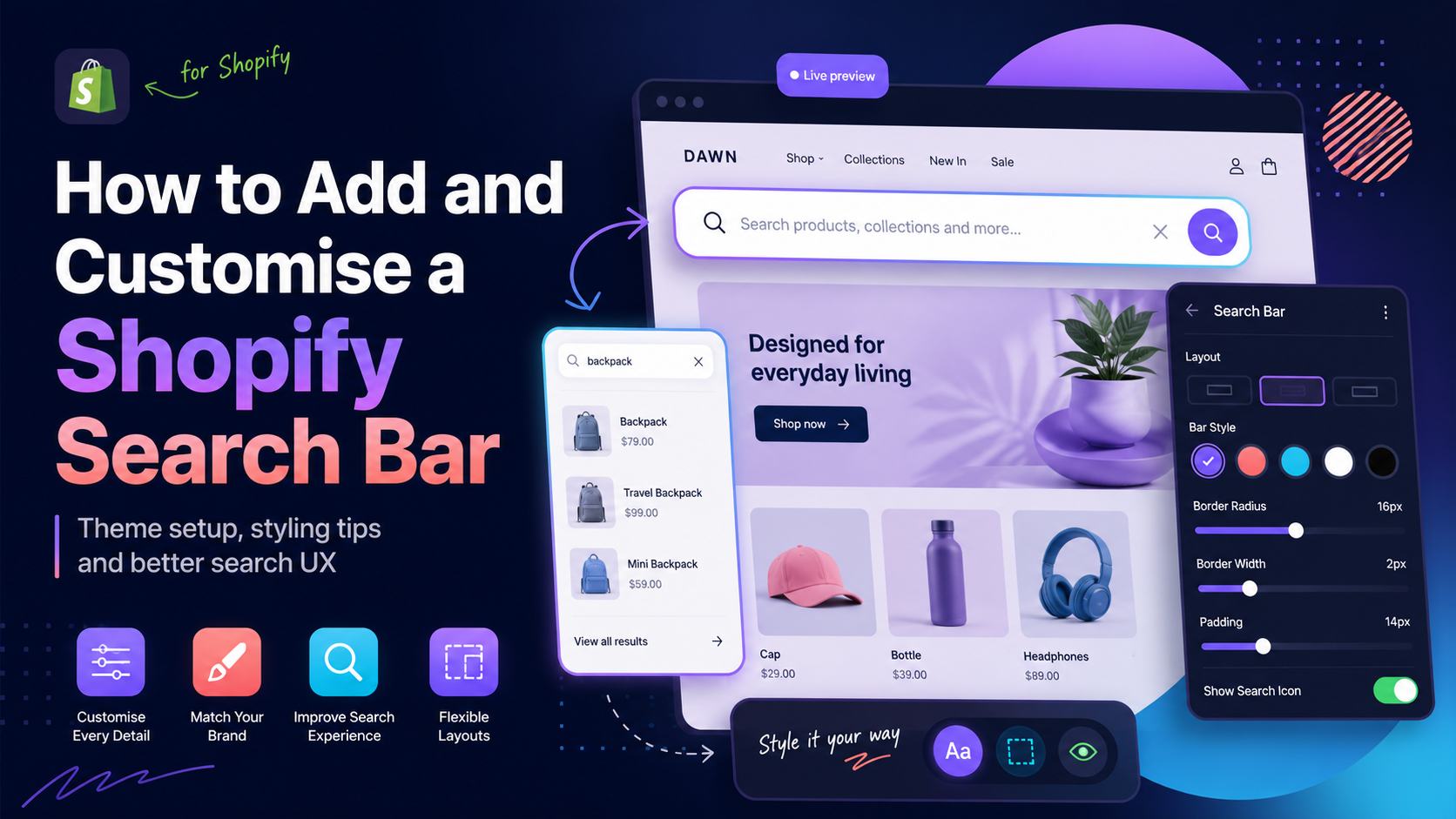
- Border radius (pill shape vs. square)
- Background colour and border colour
- Placeholder text (e.g. "Search products..." or "What are you looking for?")
- Icon style (magnifying glass position, size)
Keep the placeholder text instructive but short. "Search 4,000+ products" is more compelling than the generic "Search". Avoid making the bar too visually subtle — it should be immediately recognisable as an input field.
Enabling the Search Overlay or Drawer
Many themes support a full-screen or full-width search overlay that appears when the search icon is clicked. This gives more screen real estate to the autocomplete results and can significantly improve the search experience, particularly on mobile.
Check your theme's header settings for an option like "Search style: overlay" or "Search type: drawer". Enable it if available. Overlays generally perform better than inline inputs embedded in the header bar because they give the customer visual confirmation that search mode is active.
What Controls the Results Behind the Search Bar
A polished search bar UI means nothing if the results it returns are poor. The search bar itself is just the front end — what determines quality is the search engine behind it.
Shopify's native search engine powers the default experience: it indexes product titles, descriptions, tags, and variant titles, and returns results on a standard search results page. For many stores this is adequate, but it has known limitations: no typo tolerance, limited analytics, and no faceted filtering on the results page.
For a more complete picture of what Shopify's native search can and cannot do, see Shopify Search & Discovery: What It Does and Its Limits.
Upgrading the Search Bar to Use a Faster Engine
When you install Search Sight from the Shopify App Store, it replaces the search results rendered by Shopify's engine with results from a dedicated Meilisearch index. The search bar in your theme stays exactly where it is — Search Sight intercepts the query and returns results from its own index instead.
What changes for the customer:
- The autocomplete dropdown becomes instant (sub-50ms) and typo-tolerant.
- The search results page gains a full faceted sidebar with filters, a price slider, and sort controls.
- Products, variants, attributes, and collections are all fully indexed.
Setup takes around five minutes. There are no Liquid code edits required and no theme changes needed.
Making the Search Bar Work Harder: A Few Practical Tweaks
Beyond placement and styling, a few small changes can meaningfully improve the search bar experience:
Add a keyboard shortcut. Power users expect to open search with a keyboard shortcut. Many modern Shopify themes support pressing "/" or "Ctrl+K" to focus the search input. Check your theme documentation or enable it in the customiser if available.
Show recent searches. Some themes and dedicated search apps can show a customer their recent search queries when they click the search bar, before they start typing. This is a small convenience that reduces friction for returning visitors.
Customise the empty state. When a customer clicks the search bar and has not typed anything yet, what do they see? A blank dropdown is a missed opportunity. Some apps (including Search Sight) let you configure the empty state to show popular products, trending searches, or featured collections — giving customers a starting point even before they have expressed intent.
Test on actual mobile devices. The search bar experience on a phone is different from desktop. Tap targets need to be large enough to tap without zooming. The expanded search overlay should not shift content in a disorienting way. The keyboard should not obscure the results. Always test on a real phone or use responsive mode in your browser's developer tools at 375px width.
Common Search Bar Problems and Fixes
Search bar not visible on mobile: Check that your theme's mobile header layout includes the search icon. Some themes hide it by default on small screens to save space. Enable it in the mobile header settings.
Placeholder text is generic: Edit it in the theme customiser to something specific to your catalogue.
Autocomplete is slow or not working: Check that predictive search is enabled in the header settings. See our guide on how to add predictive search to Shopify for a full walkthrough.
Results are irrelevant: This is usually a search engine problem, not a search bar problem. See how to improve Shopify search for practical fixes.
Start your free 14-day trial of Search Sight and give your search bar a results engine that actually performs.
Learn more about the complete Shopify search upgrade Search Sight provides.