Blog
WooCommerce Search by Category and Attributes: A Practical Guide
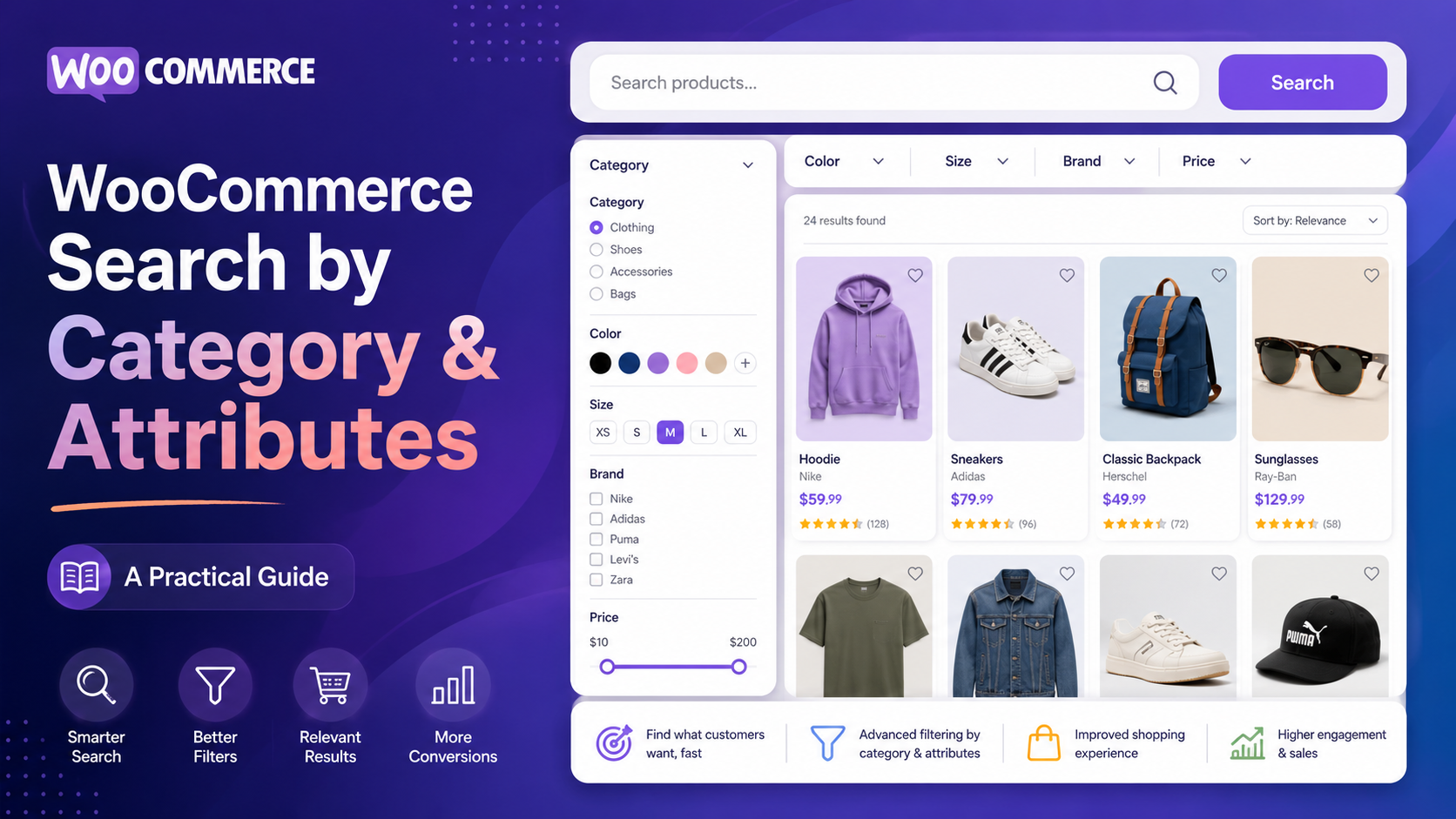
Can WooCommerce search by category and attributes?
Not by default. WooCommerce's built-in search uses WordPress's core SQL engine, which only queries product titles and descriptions. Product categories, attributes (such as colour, size, or material), tags, and variation-level data are stored in separate database tables that the default search never touches.
This means a shopper searching for "red cotton t-shirt size M" on a store with default WooCommerce search may get zero results or irrelevant results — even if the perfect product is in the catalogue — because those descriptors live in category and attribute fields, not the product description.
This guide explains the problem and the practical solutions.
Why category and attribute search matters
Modern shoppers describe products using natural language that blends name, category, and attribute in a single query. "Blue running shoes women's size 7" is not a product title — it is a combination of category (running shoes), attributes (blue, women's), and a specification (size 7). Any search engine that cannot match against that full combination will fail the shopper.
Beyond customer experience, there is a conversion impact. Research consistently shows that shoppers who use site search convert at a significantly higher rate than those who browse. When search fails to find the right product, that conversion advantage evaporates.
How WooCommerce stores category and attribute data
Understanding the data model helps explain why the default search misses this information:
- Product categories are WordPress taxonomy terms stored in wp_terms, linked to products via wp_term_relationships.
- Product tags are also taxonomy terms, in the same tables but under a different taxonomy slug.
- Product attributes (such as PA_color = blue) are also taxonomy terms for global attributes, or they can be custom attributes stored in the product's postmeta.
- Variation attributes (the specific combination of attribute values that defines a variation) are stored in wp_postmeta on each variation post.
The default search SQL query never joins these tables. A dedicated search plugin has to either extend that SQL query or — better — build its own search index that flattens all of this data into a single searchable record per product.
Making WooCommerce search by category: the indexing approach
The most robust solution is a search tool that indexes your entire product catalogue, including taxonomy data, at the product level. Search Sight does this automatically when you connect it to your store.
When a shopper searches for "running shoes", Search Sight matches against:
- The product title
- The product description
- The product's assigned categories (e.g. "Running Shoes")
- The product's tags
- All global and custom attributes
- Variation attribute combinations
All of this is matched in a single query that completes in under 50 milliseconds, with AI-powered relevance ranking to put the best matches first.
Setting up category and attribute search with Search Sight
- Sign up and start your 14-day free trial.
- Download the WooCommerce connector at sign-up, then upload and activate the plugin ZIP on WordPress (Plugins > Add New > Upload Plugin).
- In your Search Sight dashboard, run an initial index. The indexer pulls in all product data including categories, tags, and attributes.
- Search is live immediately. No configuration is needed to enable category and attribute matching — it is on by default.
If you add new attributes or categories later, the connector syncs changes automatically. You can also trigger a manual re-index from the dashboard at any time.
Using faceted search to filter by category and attributes
Beyond text search, shoppers often want to filter results by category or attribute after searching. This is called faceted search — the ability to narrow a set of search results by applying filters.
Search Sight includes a built-in faceted results page with attribute filters, a price range slider, and sort options. Shoppers can:
- Search for "shoes" and then filter by category (running, casual, formal)
- Filter by attributes (colour, size, material) with checkbox or dropdown interfaces
- Apply a price range to the filtered results
- Sort by relevance, price, or newest
See WooCommerce Faceted Search and Product Filters Explained for a full walkthrough of how faceted search works and how to configure it.
Attribute search edge cases
Custom (non-global) attributes — WooCommerce lets you add product-specific attributes that are not shared across the catalogue. Search Sight indexes these too, though they cannot appear as filter facets unless they are global attributes.
Variation-level attributes — If a product has variations (size M blue, size L blue, size M red), each variation has its own attribute combination. Search Sight indexes variations individually, so a shopper searching for "blue M" finds the specific variation, not just the parent product.
Attribute synonyms — Shoppers may use different words for the same attribute value. "Navy" and "dark blue" might both be in your catalogue as separate values, or a shopper might type one when the product uses the other. Search Sight's synonyms feature handles this. See WooCommerce Search Synonyms and Redirects for details.
Displaying category and attribute information in results
Showing category and attribute data in search results helps shoppers confirm they have the right product before clicking. In Search Sight's autocomplete and results page, you can surface:
- Product category badge
- Key attributes (e.g. colour swatch, size label)
- Variation availability indicator
This reduces the number of page loads a shopper needs to make before adding to cart.
How attribute search helps with catalogue organisation
Enabling proper attribute search has a secondary benefit beyond the customer experience: it makes sloppy catalogue organisation less costly. In many WooCommerce stores, product titles are inconsistent — some products include the colour in the title, others do not. Some include the size, others rely on variation names. When search only queries titles, these inconsistencies directly cause missed results.
With attribute-level indexing, the colour or size on a product's attribute panel is searchable regardless of whether it appears in the title. This means you can normalise your product titles over time without urgency — the attributes backstop the search in the meantime.
It also means you can use shorter, cleaner product titles (better for SEO and readability) without worrying that leaving out "blue" or "large" from a title will hide the product from shoppers who search for those terms.
Testing your category and attribute search
After setting up, run these checks:
- Search by a category name only (e.g. "jackets") — should return products in that category even if the word "jacket" does not appear in their titles.
- Search by an attribute value only (e.g. "navy") — should return all products with that colour attribute.
- Search by a combination (e.g. "navy jacket size L") — should return the most relevant matches at the top.
- Search for a variation attribute combination that does not appear in any product title — should still return the relevant product.
Related guides
- WooCommerce Faceted Search and Product Filters Explained — adding filterable facets to your search results
- How to Enable Search by SKU in WooCommerce — extending search to product part numbers
Start your free 14-day trial and make every product attribute and category searchable on your store in minutes.