Blog
How to Enable Search by SKU in WooCommerce
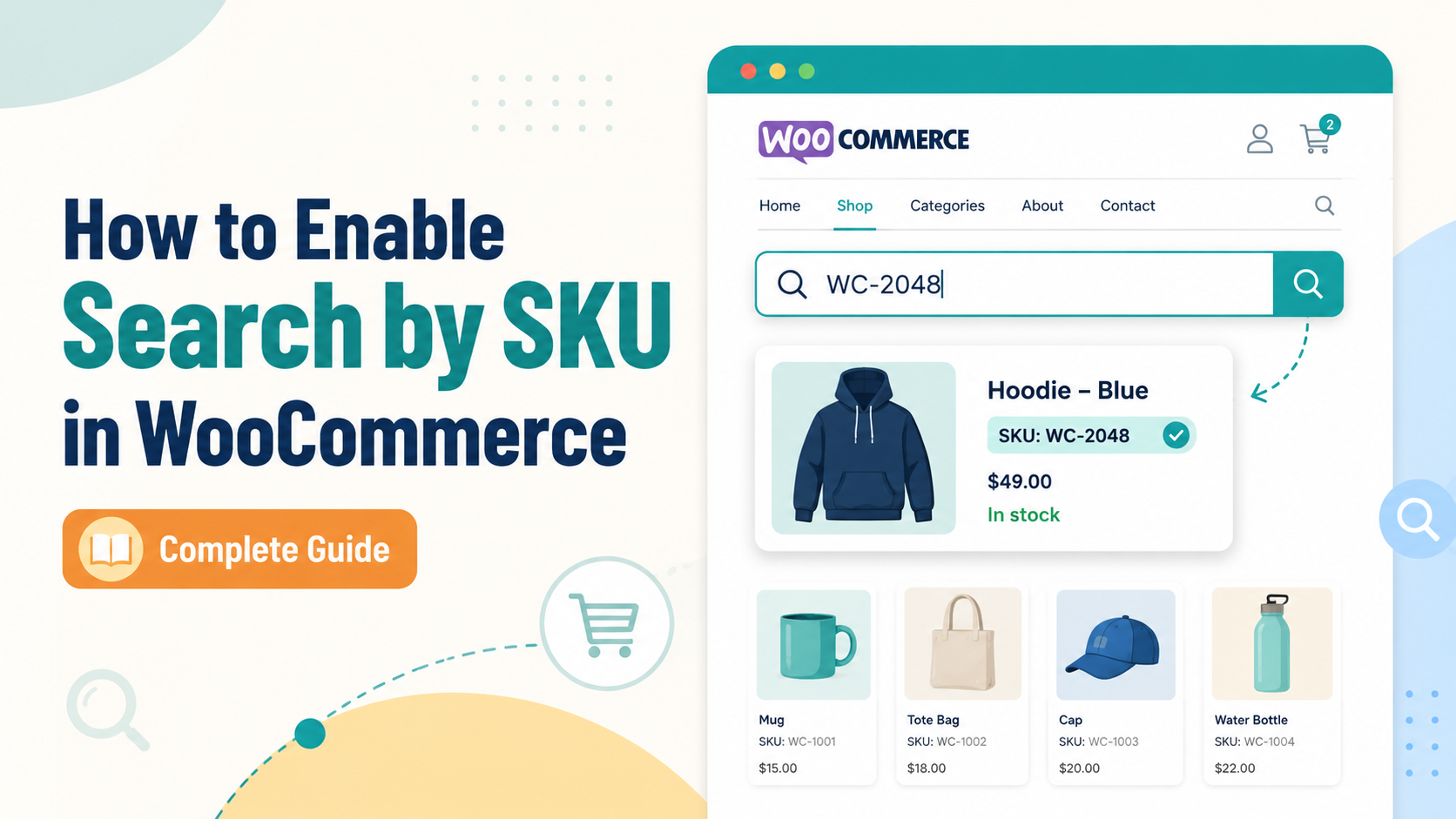
Does WooCommerce search by SKU by default?
No — WooCommerce's default search does not include SKUs. The built-in WordPress search queries post titles and descriptions only. If a shopper types a product's stock-keeping unit number into your search bar, they will get zero results even if the product is sitting right there in your catalogue.
This is one of the most common complaints from store owners, particularly those selling to trade customers, B2B buyers, or repeat shoppers who know a product by its part number. Fixing it without code is straightforward, and this guide shows you how.
Why WooCommerce ignores SKUs in search
WordPress's core search was designed for blogs, not product catalogues. It builds a SQL query that looks inside post_title and post_content — that covers product names and descriptions. The SKU lives in a separate database table (wp_postmeta, under the key _sku), which the default search query never joins.
WooCommerce does not override this behaviour out of the box. The result: your SKUs are invisible to shoppers using the search bar.
Option 1 — use a dedicated search plugin
The cleanest solution is to replace WooCommerce's search engine with one that knows about your product data structure. Search Sight indexes the entire product catalogue when you connect it — including SKUs, attributes, tags, categories, and variation SKUs — and makes all of that searchable instantly.
Here is how to set it up:
- Sign up for a Search Sight account and start your 14-day free trial.
- At sign-up you will be prompted to download the WooCommerce connector plugin ZIP file.
- In WordPress, go to Plugins > Add New > Upload Plugin, upload the ZIP, and activate it.
- In the Search Sight dashboard, click "Index Now" to sync your product catalogue.
- Once indexing is complete (usually under a minute for most stores), SKU search is live.
A shopper typing the exact SKU "ABC-123" into your search bar will now see that product as the top result. Partial SKU matches also work — typing the first few characters returns the matching products as autocomplete suggestions.
Option 2 — use a small code snippet
If you prefer not to add a plugin for this single feature, you can modify WooCommerce's search query with a PHP snippet added to your child theme's functions.php or via a code snippets plugin:
Add a filter on woocommerce_product_query that joins the postmeta table and adds a condition to match _sku against the search term. Several well-documented snippets for this approach exist on the WooCommerce developer docs site and community forums.
The limitation of this approach: it only adds SKU matching to the base SQL query. It does not give you typo tolerance, variation SKU support, or relevance ranking. A shopper who types the SKU one character wrong still gets zero results.
Searching by variation SKU
This is where the code-snippet approach breaks down. WooCommerce stores product variations as separate posts, each with its own SKU in postmeta. Matching a search term against variation SKUs requires either a more complex query or a dedicated search solution.
Search Sight indexes variation SKUs separately from parent product SKUs. If you sell a t-shirt with five size variations and each has a unique SKU, all five are indexed and searchable. The parent product is returned in results when any variation SKU matches.
Making SKU search work for B2B and trade stores
Trade buyers rarely search by product name — they search by the exact part number or SKU they have on a purchase order. If your store has trade or wholesale customers, SKU search is not optional; it is the primary way those customers will navigate your catalogue.
Beyond basic SKU matching, a professional search solution for B2B stores should also:
- Handle partial SKU matches (useful when buyers have an abbreviated reference)
- Return the correct product even when the buyer has a supplier SKU that maps to your own internal SKU via a synonym rule
- Show SKU prominently in autocomplete results so the buyer can confirm they have the right product
Search Sight's synonyms feature lets you map third-party or customer part numbers to your internal SKUs. See WooCommerce Search Synonyms and Redirects: Capture More Sales for how to configure this.
Testing your SKU search
After making any change, run these checks:
- Search for an exact SKU — the matching product should be the first result.
- Search for a partial SKU (first four characters) — partial matches should appear in autocomplete.
- Search for a deliberately misspelled SKU — with a proper search engine this should still return results; with the default WooCommerce engine it will not.
- Search for a variation's SKU — confirm the correct variation's parent product appears.
Displaying the SKU in search results
Finding a product by SKU is only half the job — the shopper also needs to confirm it is the right product. Make sure your search results page and autocomplete dropdown show the SKU alongside the product name and image. Search Sight's results page and autocomplete widget both surface the SKU so there is no ambiguity.
Staff search and SKU lookup
SKU search is not only valuable for customer-facing search bars. If you have a large catalogue, your own team — fulfillment staff, customer service agents, admin users — will also search for products by SKU when managing orders. Many store owners configure a second search bar in their WooCommerce admin bookmarks or use the front-end search from their own browser to look up stock quickly. A fast, SKU-aware search engine makes internal operations smoother too.
What to do after enabling SKU search
Once SKU search is working, use your search analytics to review how often shoppers are actually using SKUs versus product names. If SKU searches are common, consider surfacing the SKU prominently in your product cards and autocomplete results so shoppers can verify they have the right item before clicking through. If SKU searches are rare, that may indicate your SKU naming convention is not intuitive to customers — a useful insight for your product data team.
Related guides
- WooCommerce Search by Category and Attributes: A Practical Guide — extending search to more product metadata
- 5 Signs Your WooCommerce Search Is Broken — how to spot search problems before they cost you sales
- How to Add a Search Bar to WooCommerce — if you haven't set up search yet
Summary
WooCommerce does not search SKUs by default because the native search engine ignores the postmeta table where SKUs are stored. The reliable fix is a dedicated WooCommerce search plugin that indexes your full product data, including SKUs and variation SKUs, out of the box.
Start your free 14-day trial and have SKU search working on your store in under five minutes.