Blog
WooCommerce Search Synonyms and Redirects: Capture More Sales
What are WooCommerce search synonyms?
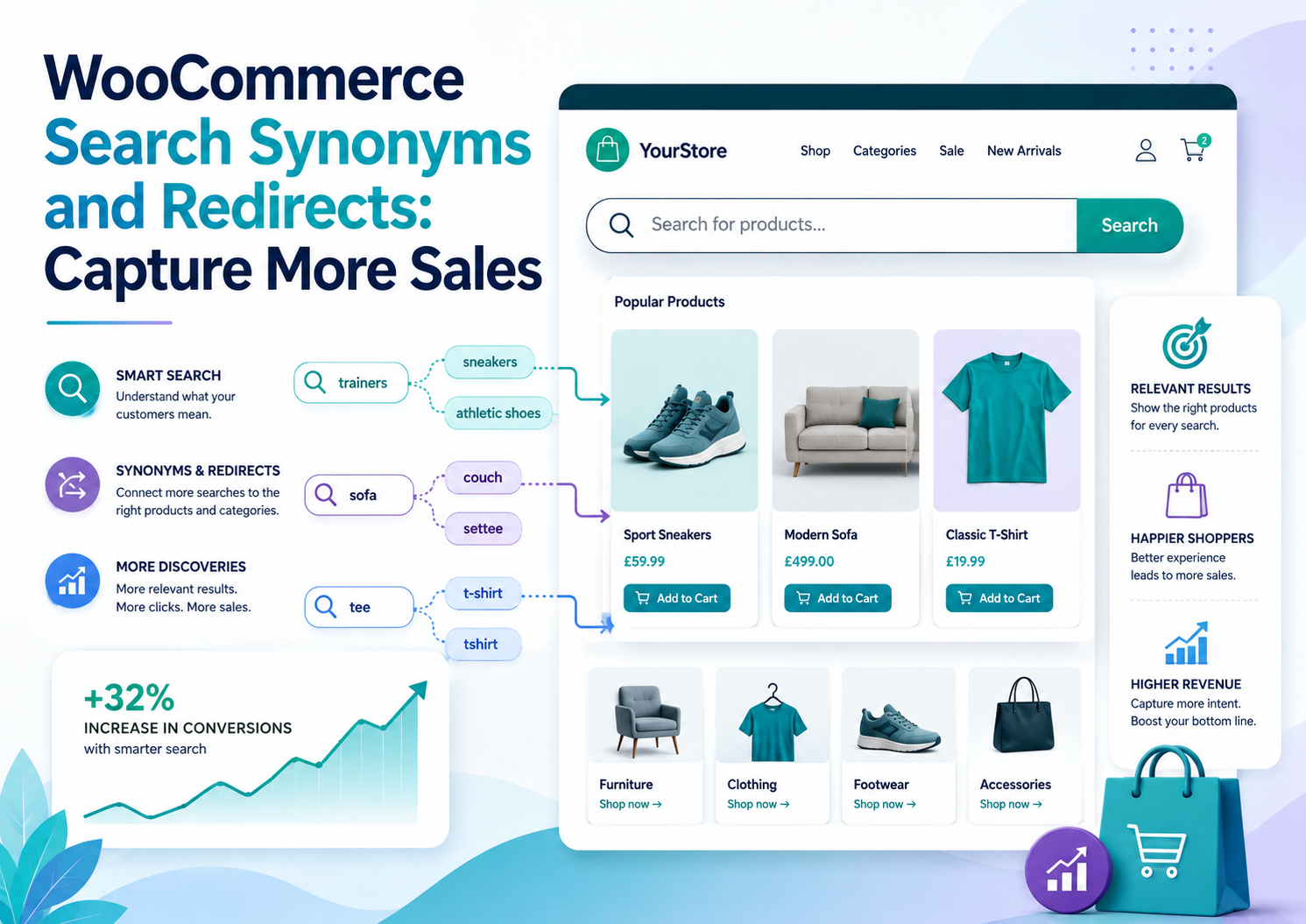
WooCommerce search synonyms are rules that tell your search engine to treat different words as equivalent. When a shopper types "sofa", synonyms make the engine also match products listed as "couch". When a shopper types "joggers", synonyms surface products labelled "jogging bottoms" or "sweatpants".
Without synonyms, a shopper who uses different vocabulary from your product listings gets zero results — not because the product doesn't exist, but because the words don't match. This is one of the most common causes of unnecessary zero-results searches on WooCommerce stores.
WooCommerce does not include any synonym functionality by default. Adding it requires either a dedicated search plugin or a custom implementation.
Why synonyms matter for ecommerce search
Every product catalogue has vocabulary gaps — words your shoppers use that don't appear in your product titles or descriptions. These gaps are larger than most store owners realise because:
- Regional language differences: UK shoppers may type "trainers" while US visitors type "sneakers". Both expect to find sports footwear.
- Industry terminology: a trade buyer might search using a technical specification ("1200W motor") while your title uses a model name.
- Brand vs generic terms: a shopper may search "hoover" (a brand name) when your product is listed as "vacuum cleaner".
- Abbreviations: "TV" vs "television", "PC" vs "computer", "t-shirt" vs "tee".
- Plural and singular variations: handled by stemming, but not all search engines include this.
Search analytics data makes these gaps visible. After running search on your store for a few weeks, your no-results report will show the exact queries that found nothing — and many of them will be synonym opportunities.
One-way vs two-way synonyms
There are two types of synonym rules:
Two-way synonyms treat words as fully interchangeable. Searching for either word returns results for both. Example: "sofa" ↔ "couch". A shopper searching "sofa" sees products labelled "couch", and vice versa.
One-way synonyms create a one-directional mapping. Searching for word A also returns results for word B, but searching for word B does not return results for word A. Example: "hoover" → "vacuum cleaner". A shopper searching "hoover" finds vacuum cleaners, but searching "vacuum cleaner" does not also return results for things labelled "hoover" (because you don't want every vacuum cleaner also matching a single brand name).
Most synonym tools default to two-way synonyms, but one-way is important for cases where the relationship is not symmetrical.
What are WooCommerce search redirects?
Search redirects are rules that send a specific search query directly to a URL, bypassing the results page entirely. Instead of showing search results for "sale", you redirect the shopper straight to your Sale category page. Instead of showing results for "delivery", you redirect to your Delivery Information page.
Redirects are useful for:
- Navigational queries: shoppers searching for a page rather than a product (FAQ, delivery, returns, contact).
- Strong single-product queries: if you know that "special edition widget" always maps to one specific product, redirect directly to that product page — one fewer click before purchase.
- Seasonal promotions: during a campaign, redirect "summer sale" to your promotional landing page.
- Out-of-stock products: redirect a discontinued product query to the best available alternative.
Setting up synonyms in Search Sight
Search Sight includes a built-in synonyms editor in the dashboard. Here is how to use it:
- In the Search Sight dashboard, navigate to the Synonyms section.
- Click "Add Synonym".
- Choose whether this is a one-way or two-way rule.
- Enter the source term(s) and the target term(s). You can have multiple source terms map to a single target, or create a group of equivalents.
- Save. The synonym is applied to all searches immediately — no re-indexing required.
Good synonym rules to start with:
- Regional vocabulary differences relevant to your market
- Brand names you stock that shoppers might search generically
- Common abbreviations for your product categories
- Any term appearing frequently in your no-results report
Setting up search redirects in Search Sight
Redirects are equally straightforward to configure:
- In the Search Sight dashboard, navigate to Redirects.
- Click "Add Redirect".
- Enter the trigger query (the search term that triggers the redirect).
- Enter the destination URL — any URL on your site.
- Choose whether the redirect is exact-match or contains-match (useful if you want variations of a query to trigger the same redirect).
- Save.
Using no-results data to build your synonym list
The most efficient way to build synonyms is to start from evidence rather than guessing. Search Sight's no-results report shows you every query that returned zero results, sorted by frequency. Work through the most common no-results queries and ask for each one: "Does this product exist in my catalogue under a different name?"
If yes, create a synonym. If no, it may be a genuine catalogue gap.
See WooCommerce Search Not Showing Products: 12 Common Causes and Fixes for other reasons searches might return empty results beyond vocabulary mismatch.
Building a synonym strategy from search data
The most efficient synonym strategy combines proactive planning with reactive data analysis:
Proactive: Before launch, review your product catalogue and identify the vocabulary gaps you already know about — regional terms, brand vs generic names, abbreviations your target customers use. Add synonyms for these immediately.
Reactive: After running search for two to four weeks, review your no-results report. Group the failed queries by topic. For each cluster, decide whether it represents a synonym opportunity (product exists, different name used) or a genuine catalogue gap (product does not exist). Address the synonym opportunities first — they are immediate wins.
Ongoing: Set a calendar reminder to review your no-results report monthly. Synonyms need to evolve with your catalogue and your customers' language. New products, new marketing campaigns, and seasonal demand all create new vocabulary that your synonym list should reflect.
Advanced synonym use cases
SKU aliases: map a supplier's part number to your internal SKU using a one-way synonym. Trade buyers using the supplier's reference will find your product.
Misspelling rules: while typo tolerance handles most typos automatically, some consistent misspellings (a product name that shoppers routinely spell wrong in a specific way) benefit from an explicit synonym rule.
Category catch-alls: a shopper searching "garden tools" might not find results if that exact phrase appears in no product titles. A synonym mapping "garden tools" to your category name (or to a redirect to the category page) prevents this.
Featured products vs redirects
Both featured products and redirects let you steer shoppers to specific destinations. The difference:
- Featured products appear pinned at the top of a regular results page alongside other results. Good when the query is genuinely about products.
- Redirects bypass the results page entirely. Good for navigational queries or cases where showing other results alongside the target would be confusing.
Related guides
- How to Add Typo-Tolerant (Fuzzy) Search to WooCommerce — handling typos alongside vocabulary mismatches
- How to Customise the WooCommerce Search Results Page — full control over the page synonyms feed into
Start your free 14-day trial and start capturing the sales your current search engine is missing.